Adding team members
Before you touch a property or a lease, get your team set up. Everyone who logs into Vespy — staff, tenant, owner, or vendor — has an account distinguished by a role. This guide covers the staff side: adding the people who will run the portfolio day to day.
1. Go to Staff Users
Section titled “1. Go to Staff Users”From the left sidebar, open Organization > Staff Users.
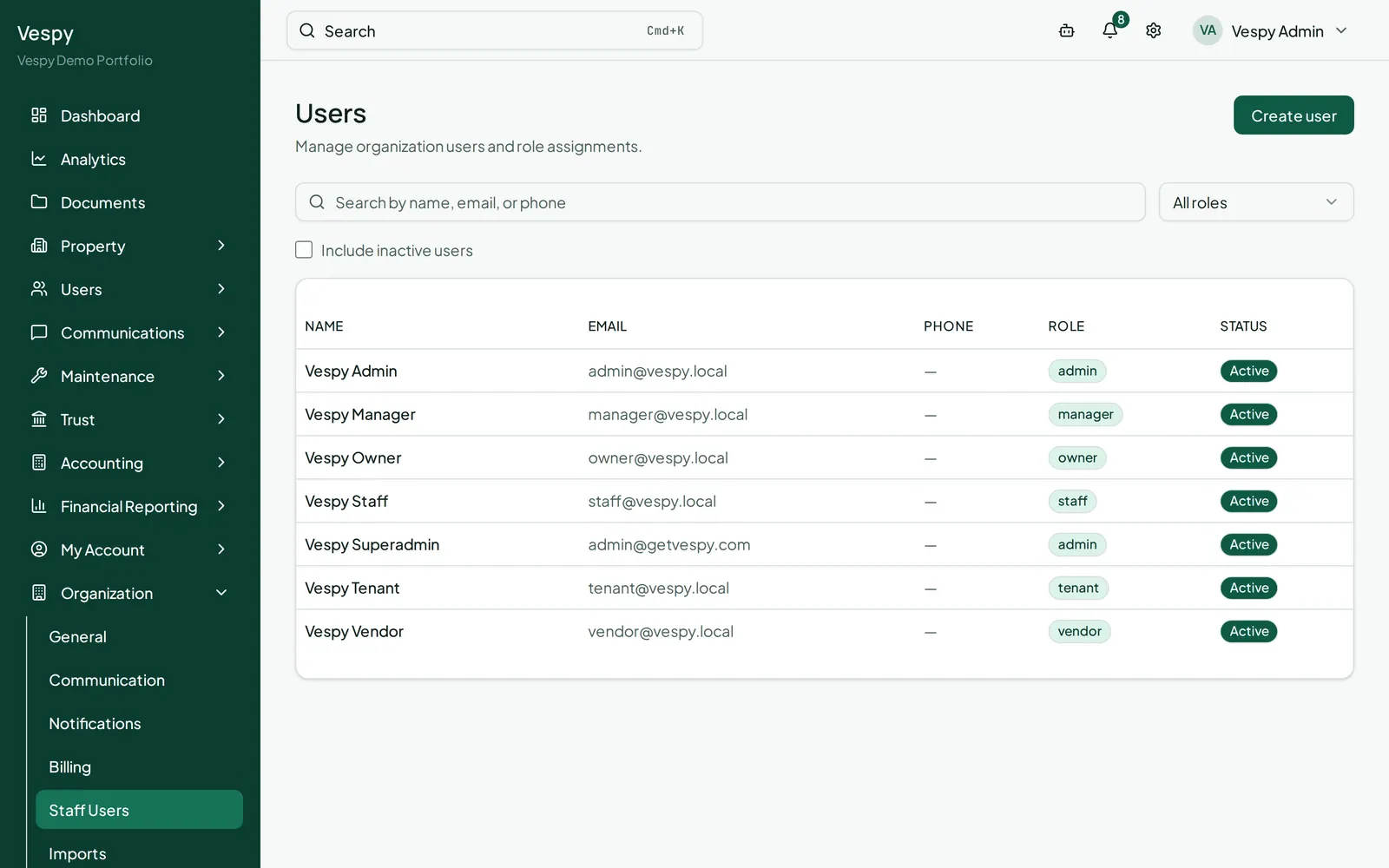
2. Create the account
Section titled “2. Create the account”Click Create user, and fill in:
- Full name
- Phone (optional)
- Role —
admin,manager, orstaff - Password — at least 8 characters
- Active user (checked by default)
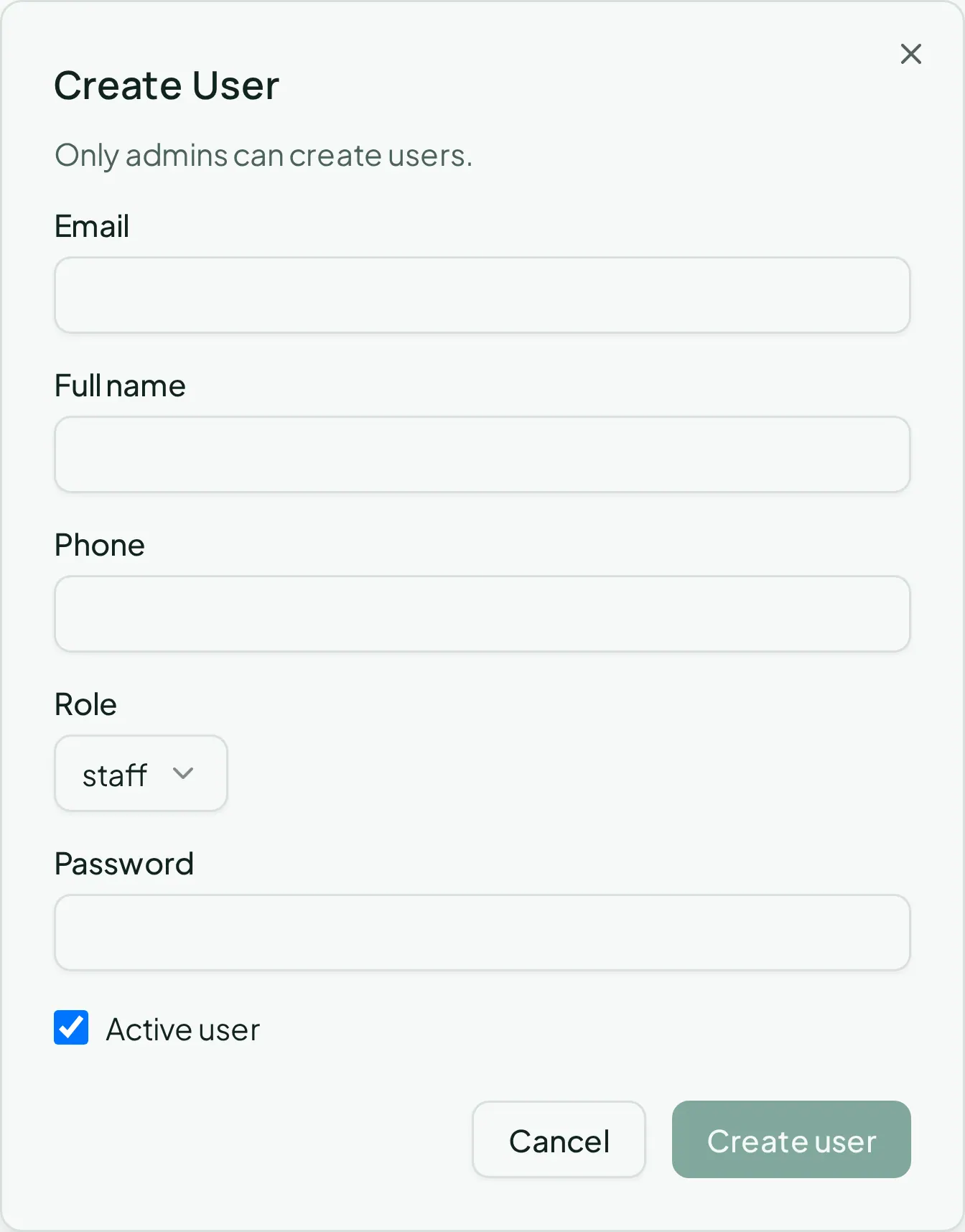
Click Create user to save.
Roles, in short:
| Role | Can do |
|---|---|
admin |
Everything, including adding/removing other users and organization settings |
manager |
Runs the portfolio — properties, leases, accounting — but can’t manage users |
staff |
Day-to-day operations; narrower access on some screens |
3. Manage the team later
Section titled “3. Manage the team later”The Staff Users list lets you search by name, email, or phone, and filter by role. Click anyone’s row to open their detail page, where Edit user lets you change their role, phone, or reset their password — and Delete user removes their account entirely (admin only, and you can’t delete yourself).
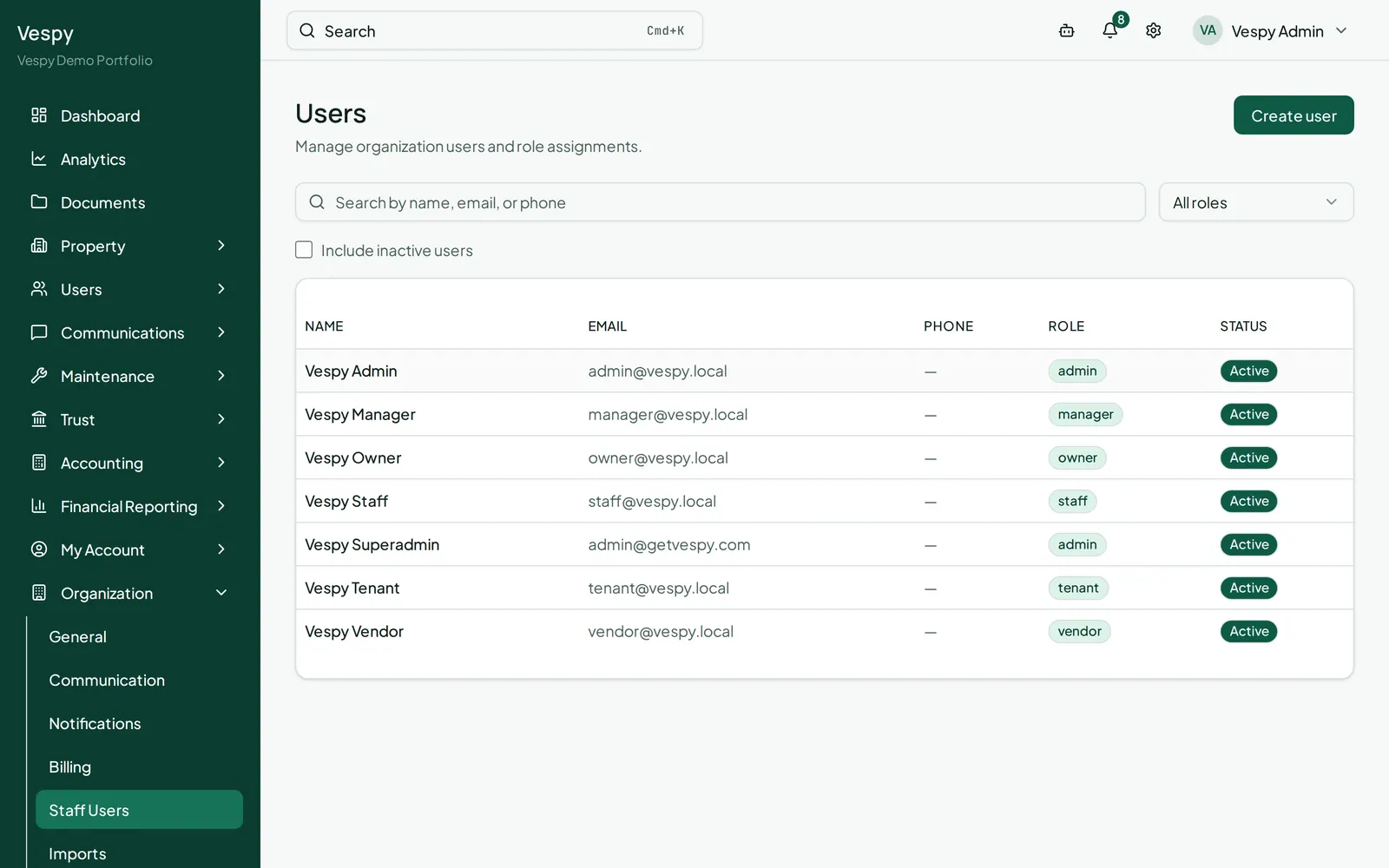
To deactivate someone without deleting their history, edit their record and uncheck Active user rather than deleting it.
Afterwards
Section titled “Afterwards”- Adding an owner — the next record most portfolios need.
- Onboarding a property — the core leasing path.