Adding a company tenant
Most commercial tenants are businesses, not people. A company tenant carries the details an invoice, a notice, or a CAM statement needs: the legal entity, the name it trades under, where bills go, and the people who receive them.
The Company option appears once commercial features are on for your organization. A person can still lease commercial space; pick Person for a sole proprietor who signs in their own name.
1. Create the company
Section titled “1. Create the company”Go to Users > Tenants and click Create tenant. Set Tenant type to Company and fill in:
- Legal name — the entity on the lease, such as
Harborlight Analytics, LLC. - Doing business as (optional) — the trading name, such as
Harborlight. - Email (optional) — the general billing inbox. Unlike a person, a company doesn’t need an email.
- Phone (optional).
- Billing address (optional) — expand it to enter the street, city, state, ZIP, and a two-letter country code.
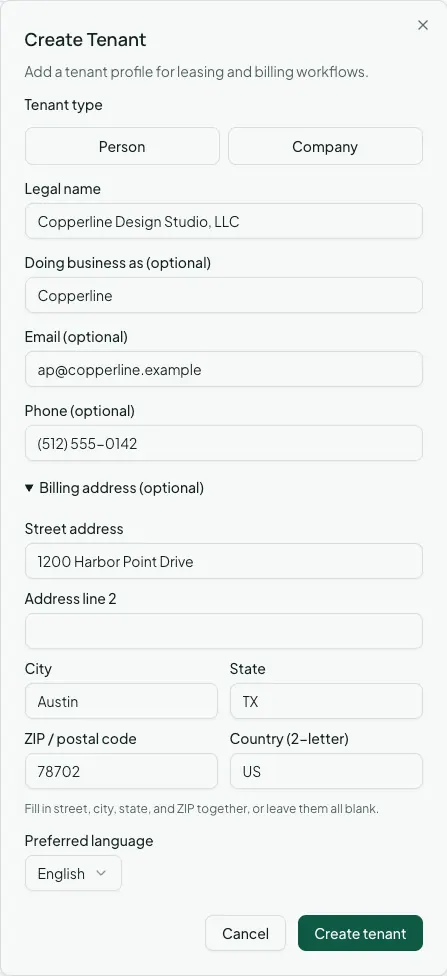
You can also create a company without leaving the lease form: New tenant next to the tenant picker in Create commercial lease opens the same fields.
2. Add contacts
Section titled “2. Add contacts”Open the tenant’s page. Company tenants show their legal name, DBA, and billing address, plus a Contacts card. Click Add contact for each person you deal with:
- Name, plus an optional Title, Email, and Phone.
- Handles: Primary, Billing, Legal notices, Sales reporting, or Emergency.
- Primary contact: one contact per company is flagged as the main point of contact. The first contact you add is primary by default.
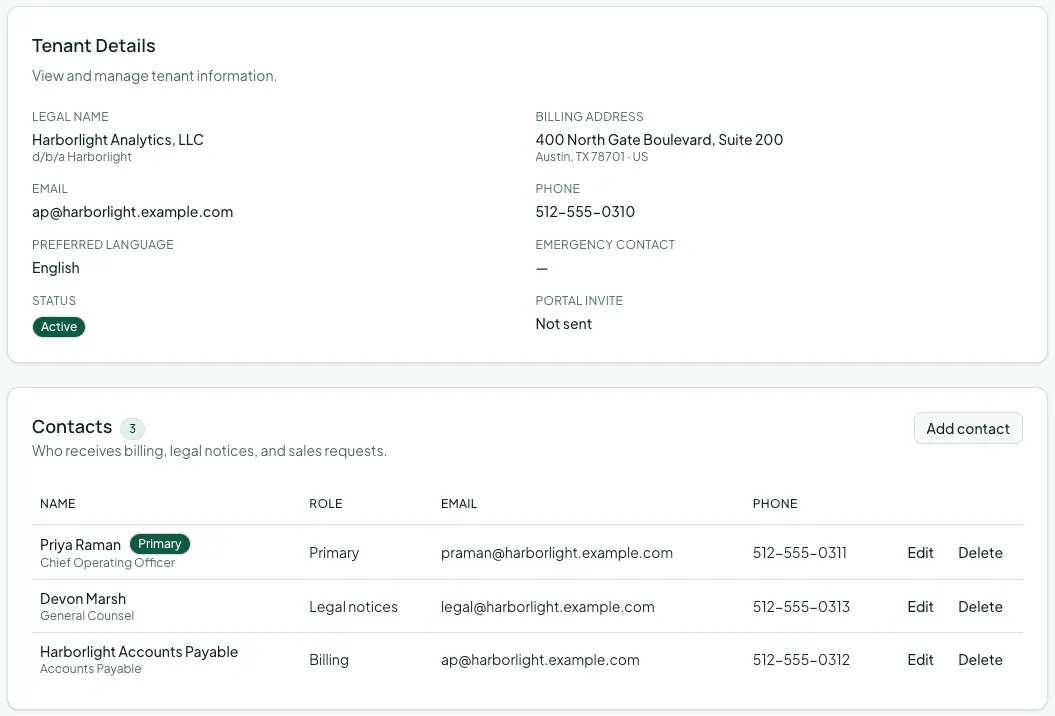
Use Sales reporting for whoever sends monthly sales figures on a percentage-rent lease, and Legal notices for the address the lease’s notice clause names.
Afterwards
Section titled “Afterwards”- Creating a commercial lease — lease space to the company.
- Inviting a tenant to the portal — give the company portal access to pay rent and read its CAM statements.