Notifications and sending a blast
“Notifications” shows up in three different places in Vespy, and they’re easy to confuse with each other:
- The bell icon in the top nav — your own real-time alerts
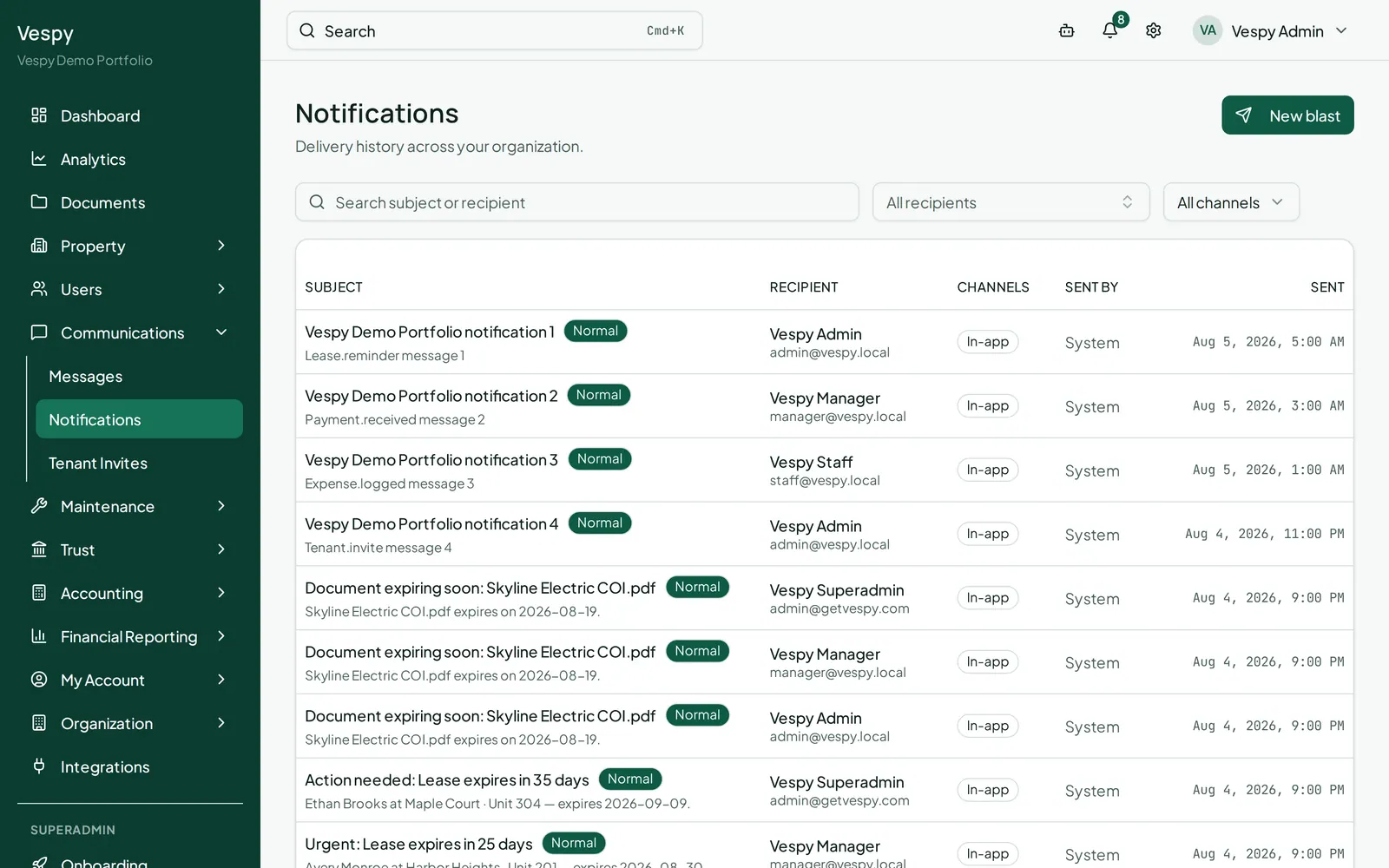
- Communications > Notifications — an organization-wide log of everything sent, plus where you send a blast
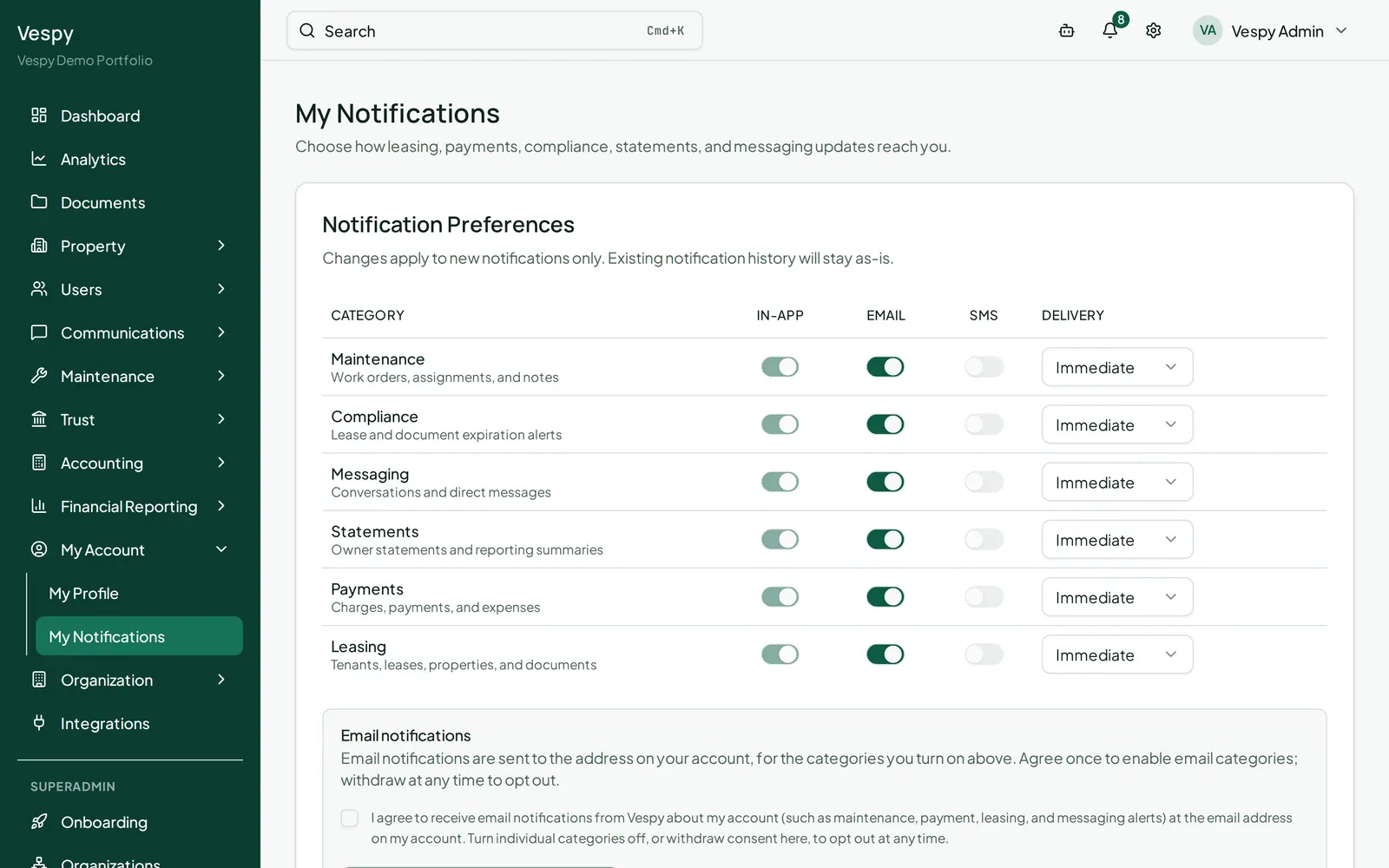
- My Account > My Notifications — your personal preferences for which alerts reach you and how
The bell
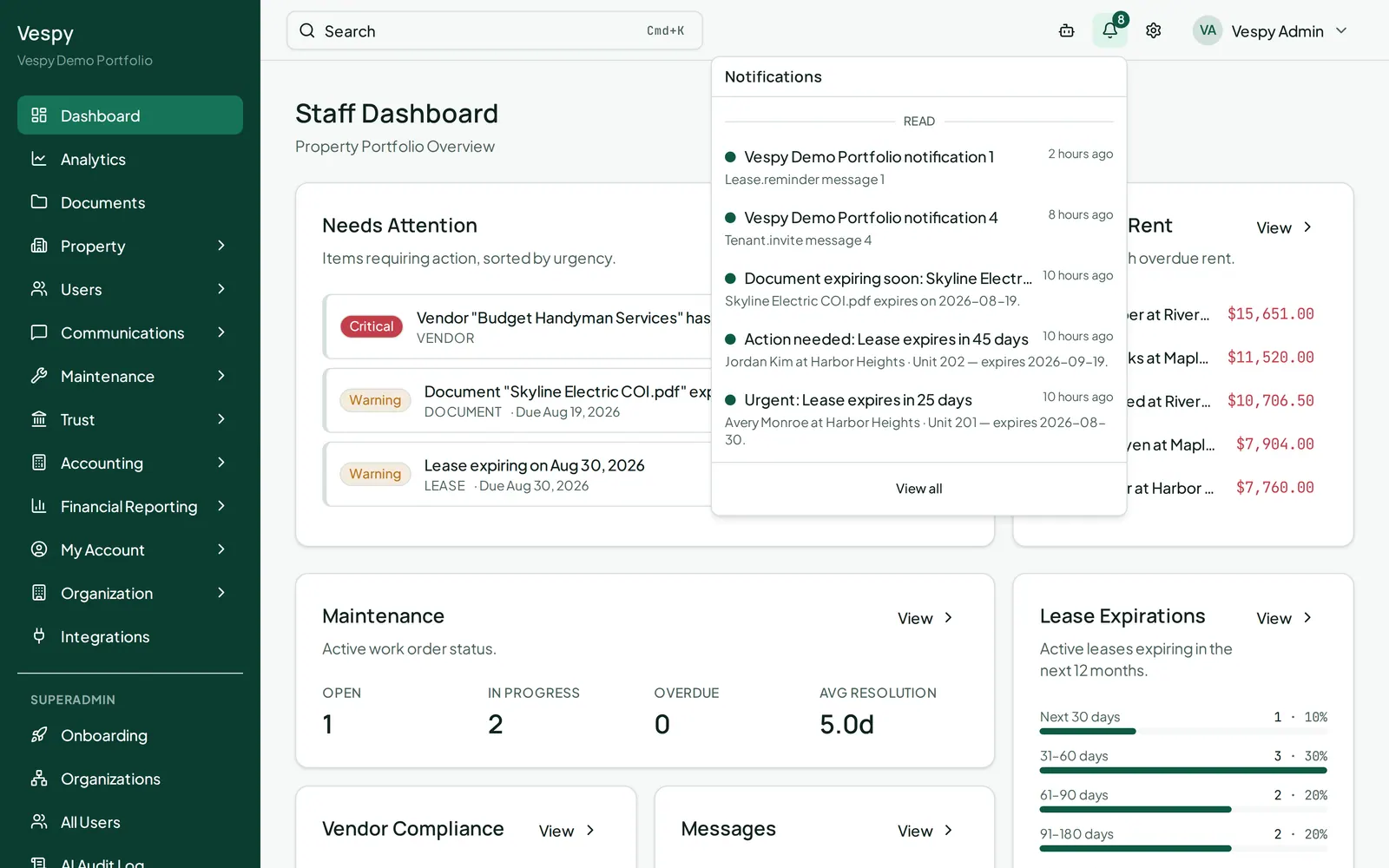
Section titled “The bell”Click the bell for a popover of your unread alerts first, then your most recently read ones. Each shows who triggered it, when, and which channels delivered it. Click one to mark it read and jump straight to whatever it’s about — a lease, a work order, a payment. Mark all as read clears the badge in one click; View all takes you to the full history below.
The delivery history
Section titled “The delivery history”Communications > Notifications is not just “your” notifications — it’s a searchable log of everything your organization has sent to anyone, with who received it, on which channels, and when. Filter by recipient or channel, and click any row for the full delivery breakdown (delivered in-app, sent by email, queued for a digest, still pending).
Sending a blast
Section titled “Sending a blast”This is also where you reach many tenants at once. Click New blast:
- Subject and Message
- Recipients — pick Properties, Units, and/or specific Tenants directly; it reaches every active-lease tenant in whatever properties/units you selected, plus anyone you added by name
- Delivery channels — In-app, Email, and/or SMS (In-app and Email are checked by default)
- Auto-translate (optional) — generates a version in each recipient’s preferred language
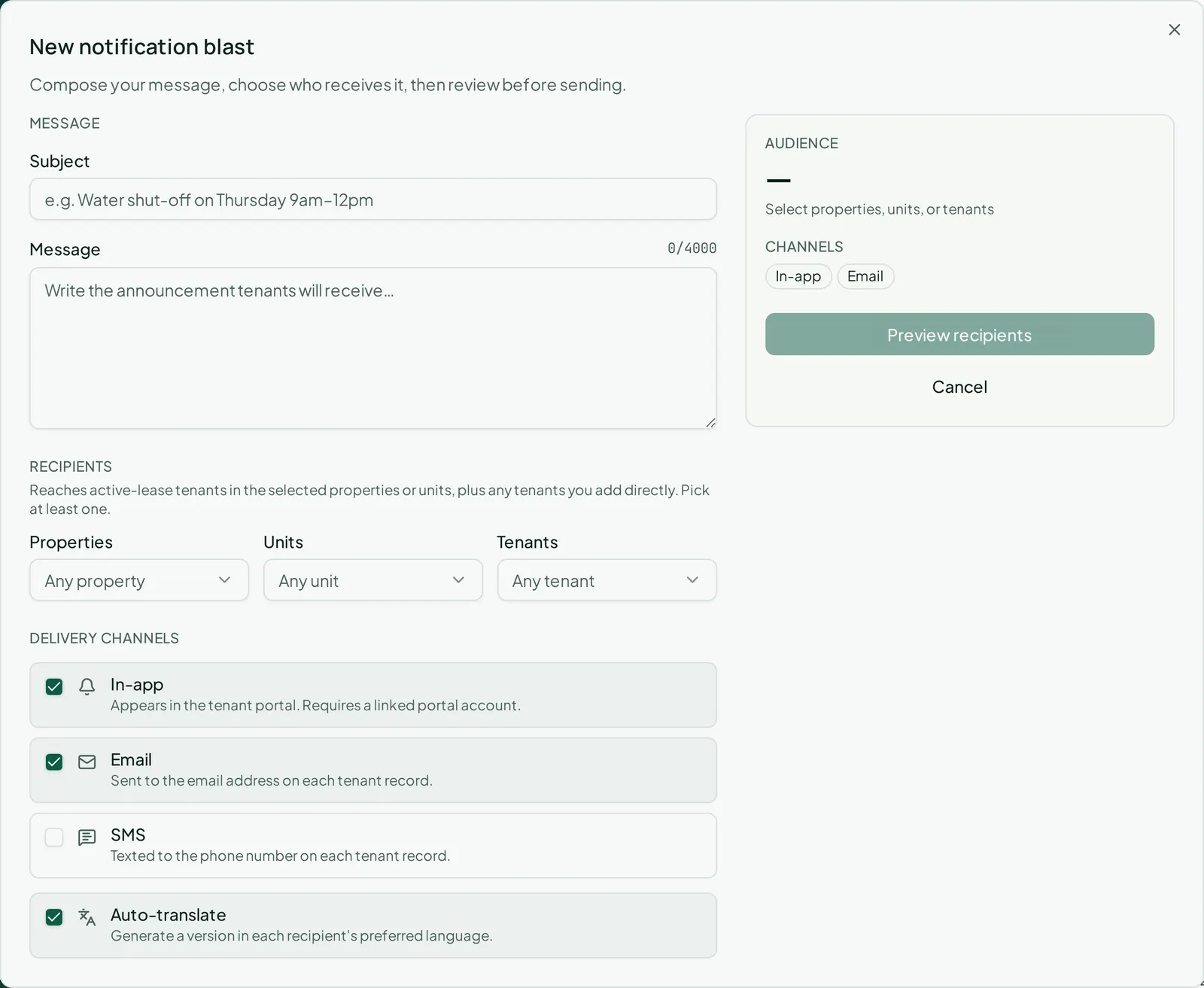
Click Preview recipients before you can send. This shows exactly how many people you’re reaching, a breakdown by language if you turned on auto-translate, and a warning if some tenants have no contact method for the channels you picked. You can hand-edit any translated version right there before sending.
Your own preferences
Section titled “Your own preferences”My Account > My Notifications controls which categories reach you personally (maintenance, compliance, messaging, payments, statements, leasing), on which channels, and whether email arrives immediately or as a daily digest. Turning on email or SMS requires a one-time consent step; withdrawing consent turns those channels back off. Send test notification buttons let you confirm delivery on each channel before relying on it.
Afterwards
Section titled “Afterwards”- Messaging tenants and vendors — for a conversation with one person, rather than a broadcast to many.