Amendments, options, and critical dates
A commercial lease changes over its life. Amendments add space or reset rent, options give the tenant rights with deadlines attached, and the lease is full of dates someone has to act on. All of this lives on the lease’s own page, under the Amendments and Dates & obligations tabs.
Every change is kept as history. Vespy never edits the lease in place: each amendment creates a new lease version, a dated snapshot of the deal, and the earlier versions stay on the Overview tab marked Superseded.
1. Draft and apply an amendment
Section titled “1. Draft and apply an amendment”Open the lease, go to the Amendments tab, and click Draft amendment. Fill in:
- Title, such as
Amendment 1 — Suite 210 expansion. - Effective date and Executed date.
- Abstract summary: what the lease looks like after this amendment. This becomes the new version’s summary.
- Billing schedule to rewrite (optional): the schedule whose rent changes. Then enter its replacement steps, which take over from the effective date. Leaving the list empty ends billing on that schedule.
- Notes.
An amendment stays editable while it’s a Draft. When it matches the signed document, click Approve, then Preview & apply.
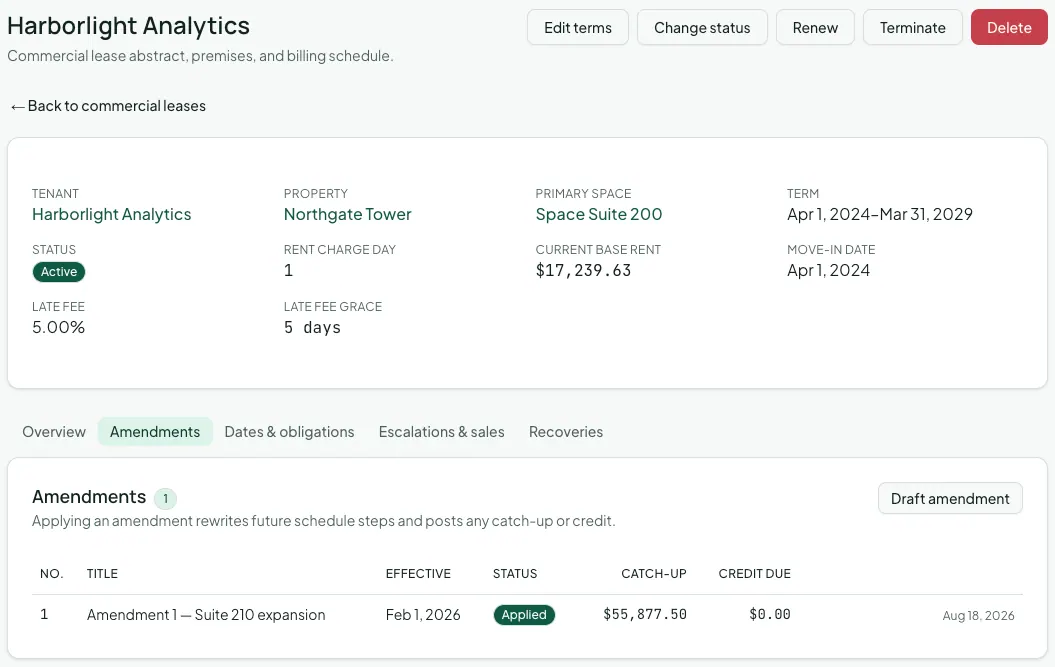
The preview shows exactly what applying will do before anything changes:
- Catch-up charge: if the amendment takes effect in the past and raises rent, the difference for months already billed.
- Credit due: if it lowers rent for months already billed, the amount owed back.
- A month-by-month table of Billed, Amended, and Delta for every affected month.
Click Apply amendment to make the change. In one step, Vespy creates the new lease version, rewrites the schedule’s future steps, posts any catch-up charge, and issues a credit memo for any credit due. The amendment’s status moves to Applied.
2. Track options and obligations
Section titled “2. Track options and obligations”On the Dates & obligations tab:
Options are rights the lease gives the tenant. Click Add option and choose the Type (Renewal, Expansion, Contraction, Termination, Purchase, Right of first refusal, or Right of first offer), the Notice window start and Notice window end, the Exercise deadline, and the Term (months) the option would add. Mark an option Exercised, Expired, or Waived as it resolves.
Obligations are recurring duties either party owes. Click Add obligation and enter a Description, its Type (Insurance, Maintenance, Reporting, Financial, Compliance, or Other), the Responsible party (Tenant or Landlord), the Frequency (One time, Monthly, Quarterly, or Annual), and the next Due date. A typical example: the tenant delivers a certificate of insurance every year.
3. Set critical dates
Section titled “3. Set critical dates”Critical dates are the deadlines Vespy reminds you about. Click Add date and enter a Title, the Type (Option notice, Renewal, Expiration, Rent change, Insurance expiration, Inspection, Obligation, Guaranty expiration, or Other), the Due date, and Lead days: how far ahead of the due date the reminder fires.
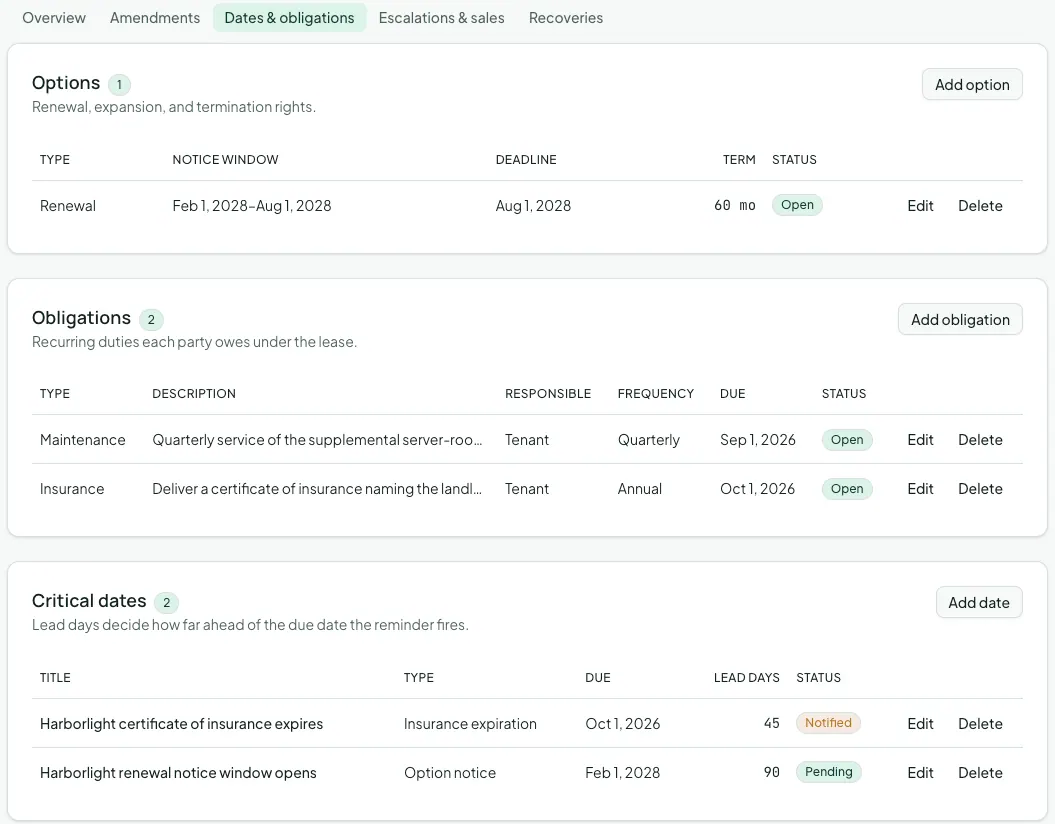
Each morning Vespy checks every pending critical date. When a date comes within its lead days, your organization’s admins and managers get a notification and the date moves to Notified. Mark it Completed once it’s handled, or Dismissed if it no longer applies.
Afterwards
Section titled “Afterwards”- Rent escalations and index values — scheduled increases that don’t need an amendment.
- Commercial reports — Lease Abstract & Amendments and Lease Rollover & Options report on everything above.