Setting up management fees
A management fee rule turns “we keep 10% of rent” into something calculated for you every month, instead of a manual expense you have to remember to create.
1. Create a rule
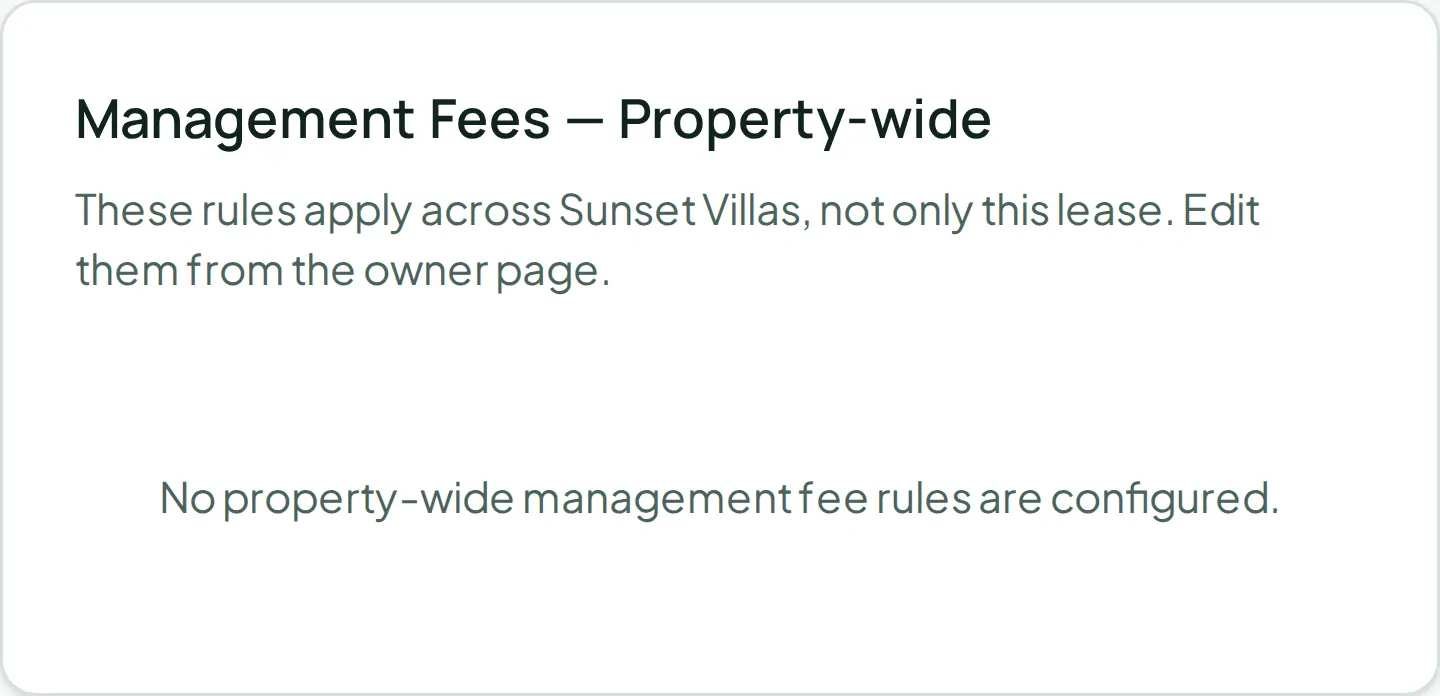
Section titled “1. Create a rule”Open the owner from Users > Owners, find the Management Fees card on their page, and click Add rule:
- Property — which property this rule applies to
- Fee type — Percentage, Flat, or Hybrid (both)
- Percentage (for Percentage or Hybrid)
- Owner rent-basis share (for Percentage or Hybrid) — what portion of this property’s collected rent belongs to this owner. For a property with a single owner, that’s the whole thing; for a property split between co-owners, it’s their share
- Flat amount (for Flat or Hybrid)
- Monthly generation day — when the fee calculates each month
Click Save rule.
2. See what it’s generated
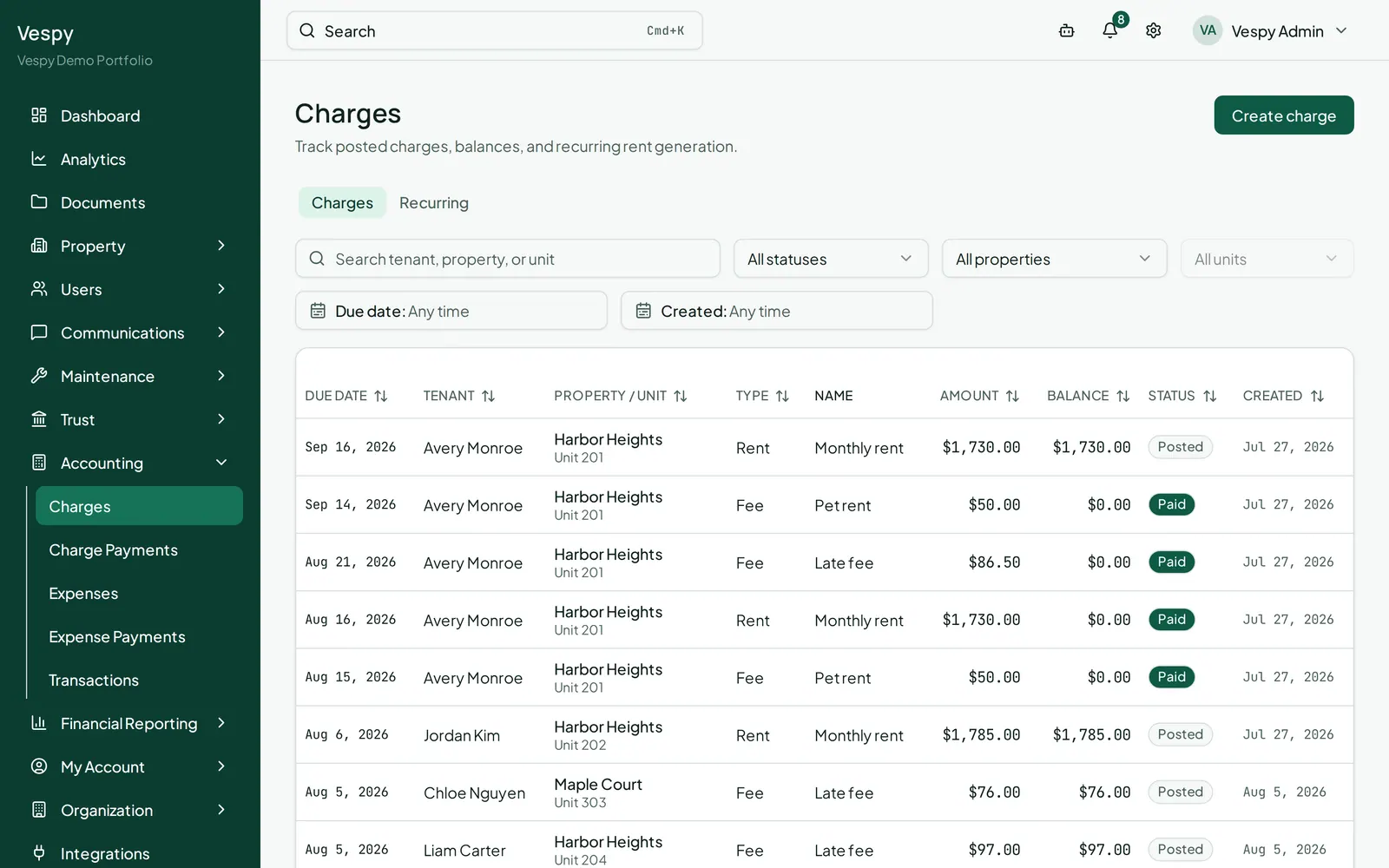
Section titled “2. See what it’s generated”Each rule shows its status, a plain-language summary of the formula (like “8.00% of 100.00% owner-share collected rent”), and when it last ran. A run history table below the rules shows every past calculation — the rent it was based on and the fee it produced.
3. Change or end a rule
Section titled “3. Change or end a rule”Click Revise on an existing rule to change its terms going forward — past runs keep whatever terms they actually calculated under, so this doesn’t rewrite history. Click End to stop the rule (with a confirmation first); it stops after the current full month, and nothing already generated is touched.
Afterwards
Section titled “Afterwards”- Adding an owner — the owner’s ledger reflects fees deducted here.
- Closing the books each month — management fee expenses flow into the same period close.