Accepting your tenant portal invite
If your property manager has invited you to the tenant portal, you’ll get a link by email. Here’s what to expect when you click it.
1. Open the link
Section titled “1. Open the link”The link validates your invite automatically. If it’s expired or already used, you’ll see a message saying so — ask your property manager for a new one. Otherwise, you’re taken straight to creating your account.
2. Set a password
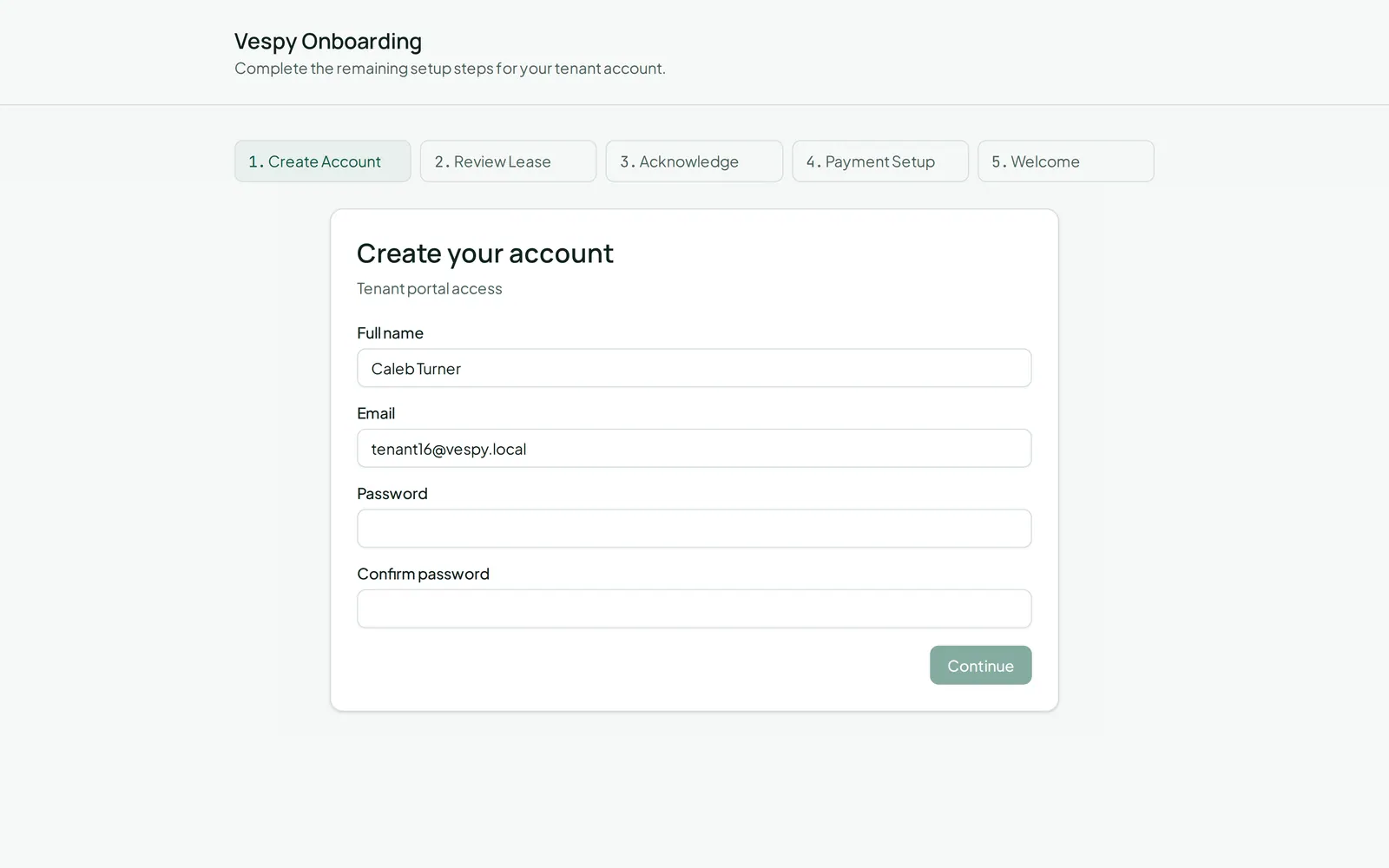
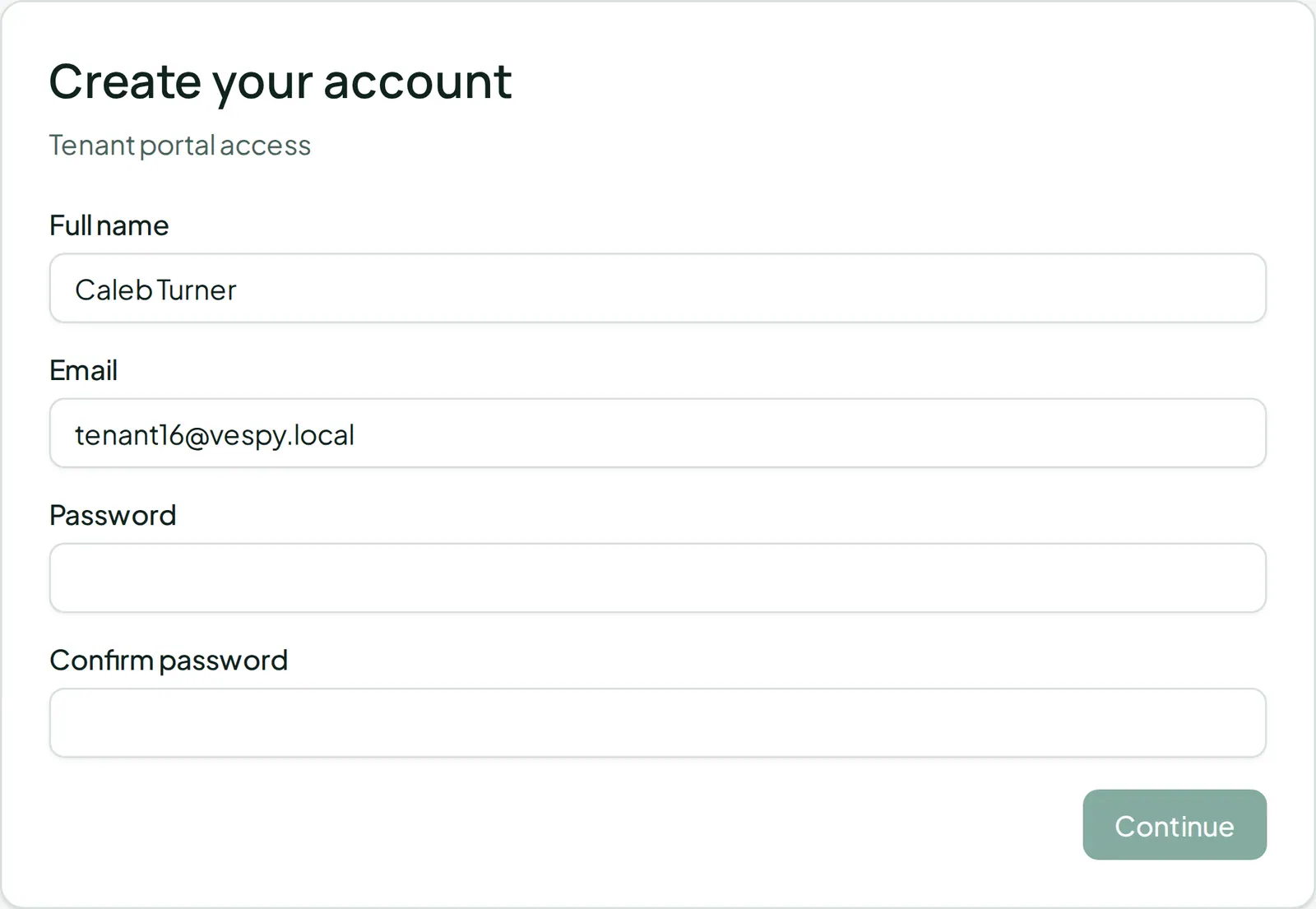
Section titled “2. Set a password”Your name and email are already filled in and can’t be changed here (they come from your tenant record). Just choose a Password and confirm it — at least 8 characters.
3. Review your lease (if it’s attached to your invite)
Section titled “3. Review your lease (if it’s attached to your invite)”If your invite is linked to a specific lease, you’ll see a short summary — property, unit, start and end dates, and monthly rent. Check “I have reviewed the lease terms” to continue.
4. Acknowledge
Section titled “4. Acknowledge”A short acknowledgement step (house rules and policies) comes next — check the box and continue.
5. You’re in
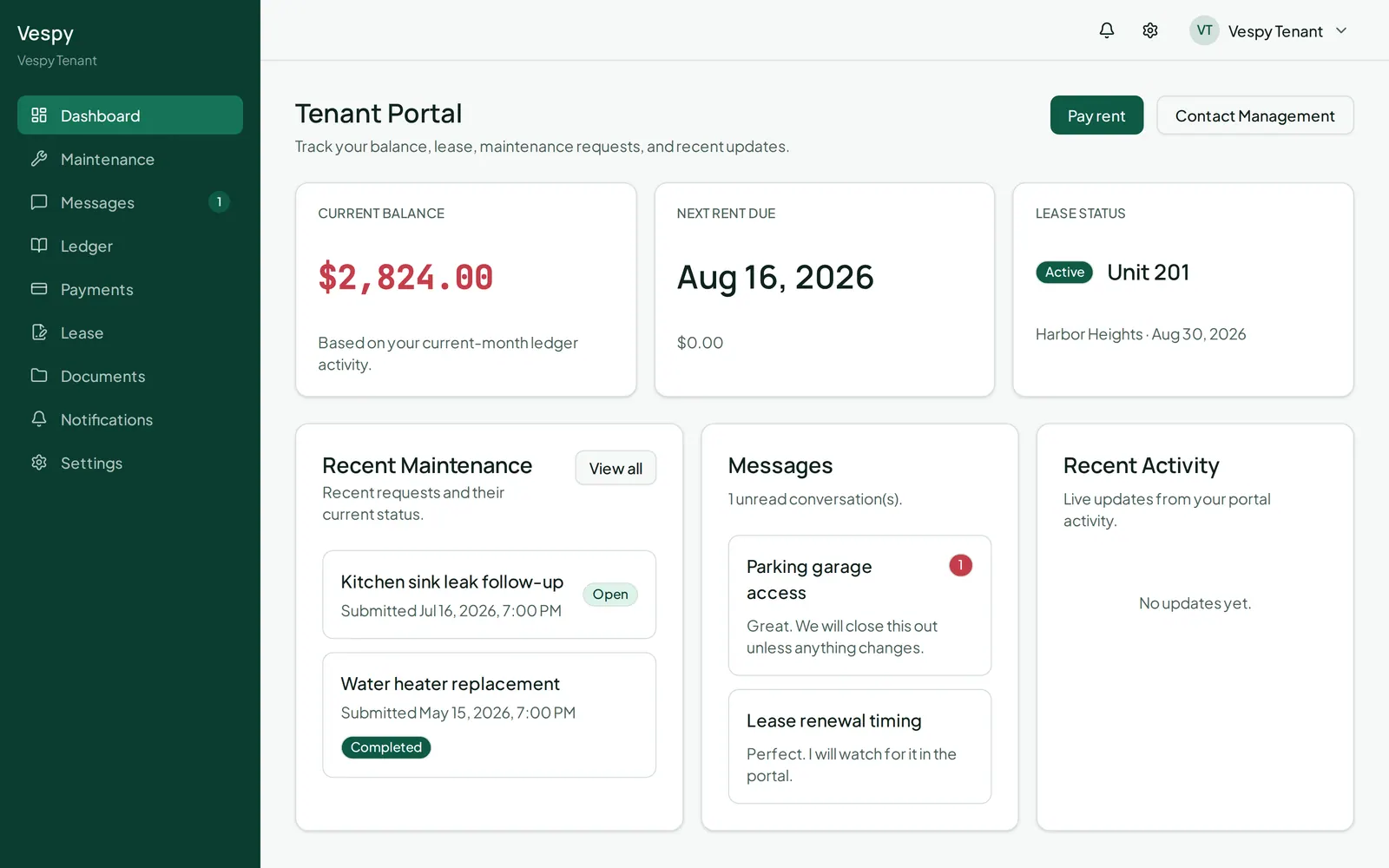
Section titled “5. You’re in”The last screen confirms your account is ready. Click Go to Dashboard to land on your tenant portal home page.