Importing commercial leases
There are two ways to bring in commercial leases you already have, both on the Commercial > Commercial Leases page:
- Import rent roll CSV: many leases at once from a spreadsheet, for migrating a portfolio.
- Import from lease PDF: one lease at a time, read from the signed lease document, for leases that come with a lot of clauses.
1. Import a rent roll from CSV
Section titled “1. Import a rent roll from CSV”Before you import, create each property (as commercial or mixed-use), and any buildings, floors, and recovery pools the rows refer to. The import creates suites, tenants, leases, and recovery rules, but it matches buildings, floors, and pools by name rather than creating them.
Click Import rent roll CSV, then:
- Pick the Commercial property the rows belong to. One file imports into one property.
- Pick the Base rent income category the rent steps bill to, and, if any row recovers operating costs, the Recovery income category.
- Click Download template for a CSV with the right headers, fill in one row per lease, and choose it under CSV file. The page lists the recovery pools that exist for the property you picked, so you can copy their exact names.
- Click Import rent roll.
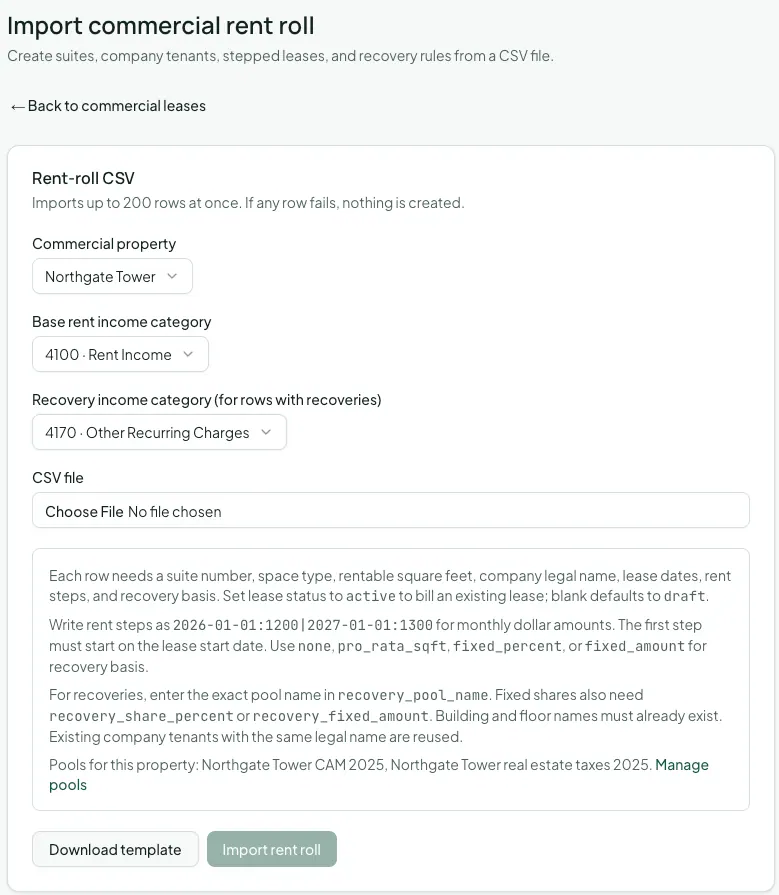
Each row describes one suite and the lease on it:
| Column | What goes in it |
|---|---|
suite_number, space_type, rentable_sqft |
The suite. It’s created if it doesn’t exist yet |
tenant_legal_name |
The company. An existing company with exactly this legal name is reused |
lease_start, lease_end |
The term, as YYYY-MM-DD |
lease_status |
active to start billing; blank imports a draft |
rent_steps |
Monthly base rent steps, like 2026-01-01:1200|2027-01-01:1300. The first step must start on the lease start date |
recovery_basis |
none, pro_rata_sqft, fixed_percent, or fixed_amount |
recovery_pool_name |
The exact name of an existing pool, for rows that recover costs |
recovery_share_percent, recovery_fixed_amount |
The share, for the two fixed bases |
building_name, floor_label |
Optional. Must match an existing building and floor |
A file can hold up to 200 rows. The import is all or nothing: if any row has a problem, Vespy shows the error and creates nothing, so you can fix the file and upload it again.
2. Import a lease from its PDF
Section titled “2. Import a lease from its PDF”Click Import from lease PDF. In Read a lease document:
- Under What kind of lease is this?, choose Commercial. (It’s already chosen when you open it from Commercial Leases.)
- Pick a lease document already in your document library, or upload a new one.
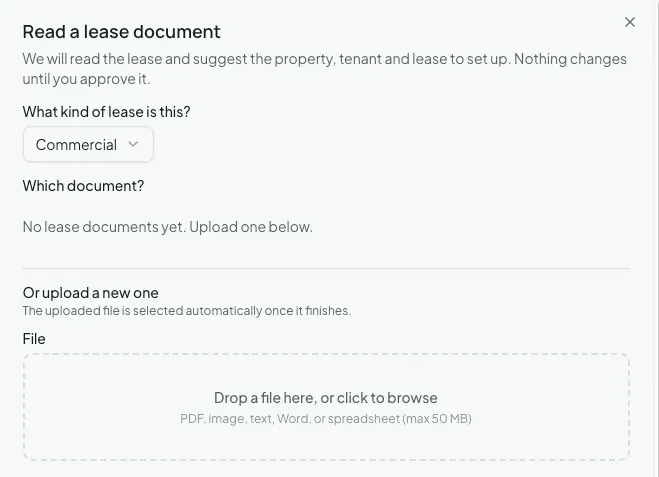
Vespy reads the lease and suggests what to set up, grouped as Property & tenant, Lease terms, Rent & recurring charges, Rent increases, Promises & options, Key dates, and Security deposit. Nothing is created yet. On the Review lease terms page, check each suggestion against the document, untick anything you don’t want, and click Apply (the button counts the changes you’ve selected), then Apply changes to confirm. The changes are made all together, or not at all if any one of them fails.
To read an amendment or a side letter into a lease that already exists, use the Read a lease document card at the bottom of that lease’s Overview tab instead. Its suggestions are added to the existing lease.
Afterwards
Section titled “Afterwards”- Creating a commercial lease — what each imported lease contains, and how to adjust it.
- Reconciling CAM recoveries — finish setting up the recovery pools your imported leases recover from.