Setting up a commercial property
A commercial property is laid out in up to three levels, and only the last one is required:
property → building → floor → space (suite, retail bay, warehouse, parking, storage)Buildings and floors are optional. A single-building retail strip can go straight from property to spaces. They earn their keep on multi-building campuses and multi-floor towers, where the Stacking & Availability report groups area by building and floor.
1. Create the property
Section titled “1. Create the property”Go to Property > Properties and click Create property. Fill in the name and address as usual, then set Asset class:
- Commercial — office, retail, or industrial only.
- Mixed use — commercial space and residential units in the same property, such as apartments over ground-floor retail.
- Residential — the default for a residential portfolio.
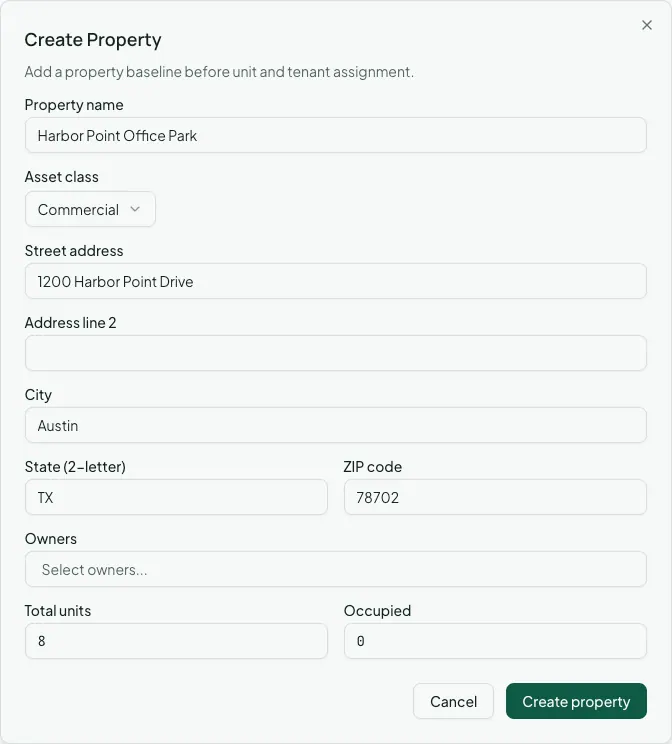
The asset class decides which forms Vespy shows you for the property from then on: new spaces default to commercial space types, and Create lease on the property opens the commercial lease form instead of the residential one. When you save, Vespy takes you to the new property’s page.
2. Add buildings and floors
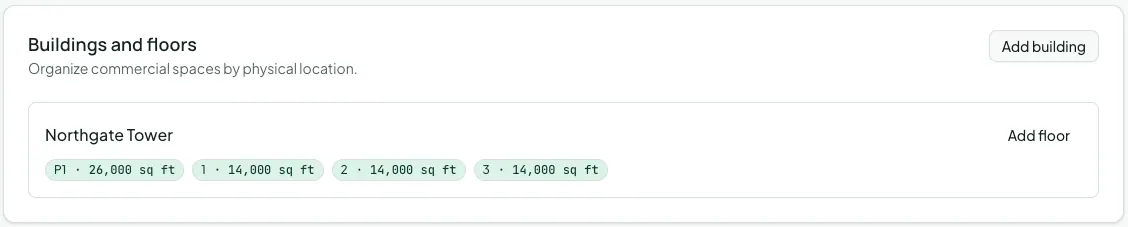
Section titled “2. Add buildings and floors”On the property’s page, find the Buildings and floors card.
- Click Add building and give it a Name.
- Click Add floor next to a building and enter its Label (such as
3orP1), its Level (used for ordering, so basements can be negative), and optionally the Floor plate sq ft.
3. Add spaces
Section titled “3. Add spaces”Open the property and click Manage units on its Units card. On a commercial or mixed-use property, the page has two ways to add space.
Add suites in bulk is the fast path for a new building. Pick a Space type, and optionally the Building and Floor every suite sits on. Then enter one row per suite: Suite number and Rentable sq ft. Click Add another suite for each extra row. Every suite starts vacant.
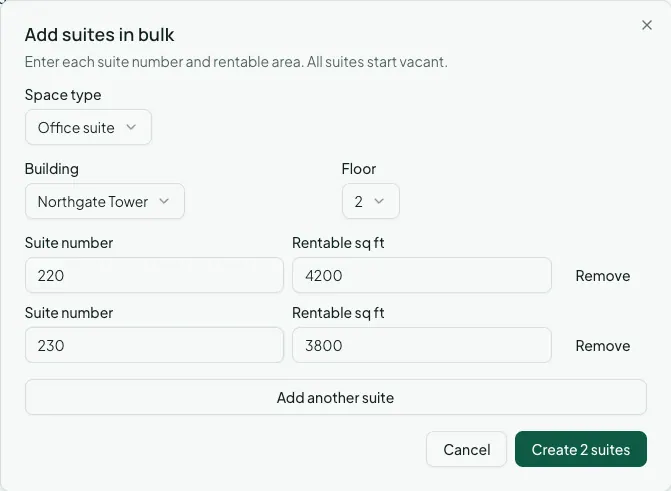
If one row fails (say, a duplicate suite number), the rest are still created and the failed rows stay in the dialog so you can fix them and try again.
Add Unit adds a single space with every field available:
- Space type: Office suite, Retail, Industrial, Storage, Parking, Other, or Residential unit (on mixed-use properties).
- Rentable sq ft and Usable sq ft. Rentable square footage is required for office, retail, and industrial space.
- Building and Floor.
- Status and Access instructions.
Commercial spaces don’t carry bedrooms, bathrooms, or a monthly rent. Their rent lives on the lease’s billing schedules instead.
Afterwards
Section titled “Afterwards”- Adding a company tenant — the business that will lease the space.
- Creating a commercial lease — put the space under lease.