Messaging tenants and vendors
Go to Communications > Messages for one inbox covering every conversation with your tenants and vendors, regardless of which channel they came in on.
1. Find a conversation
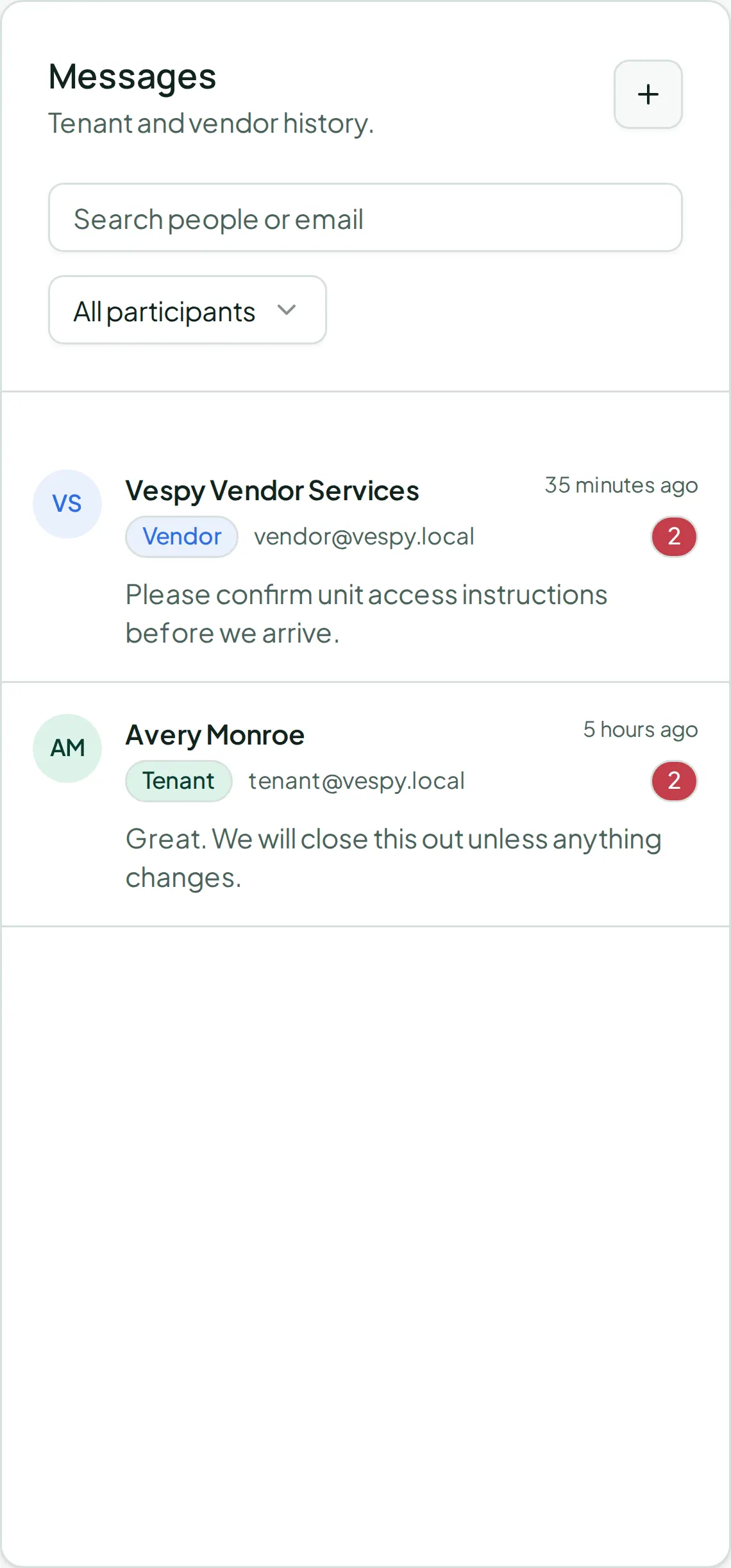
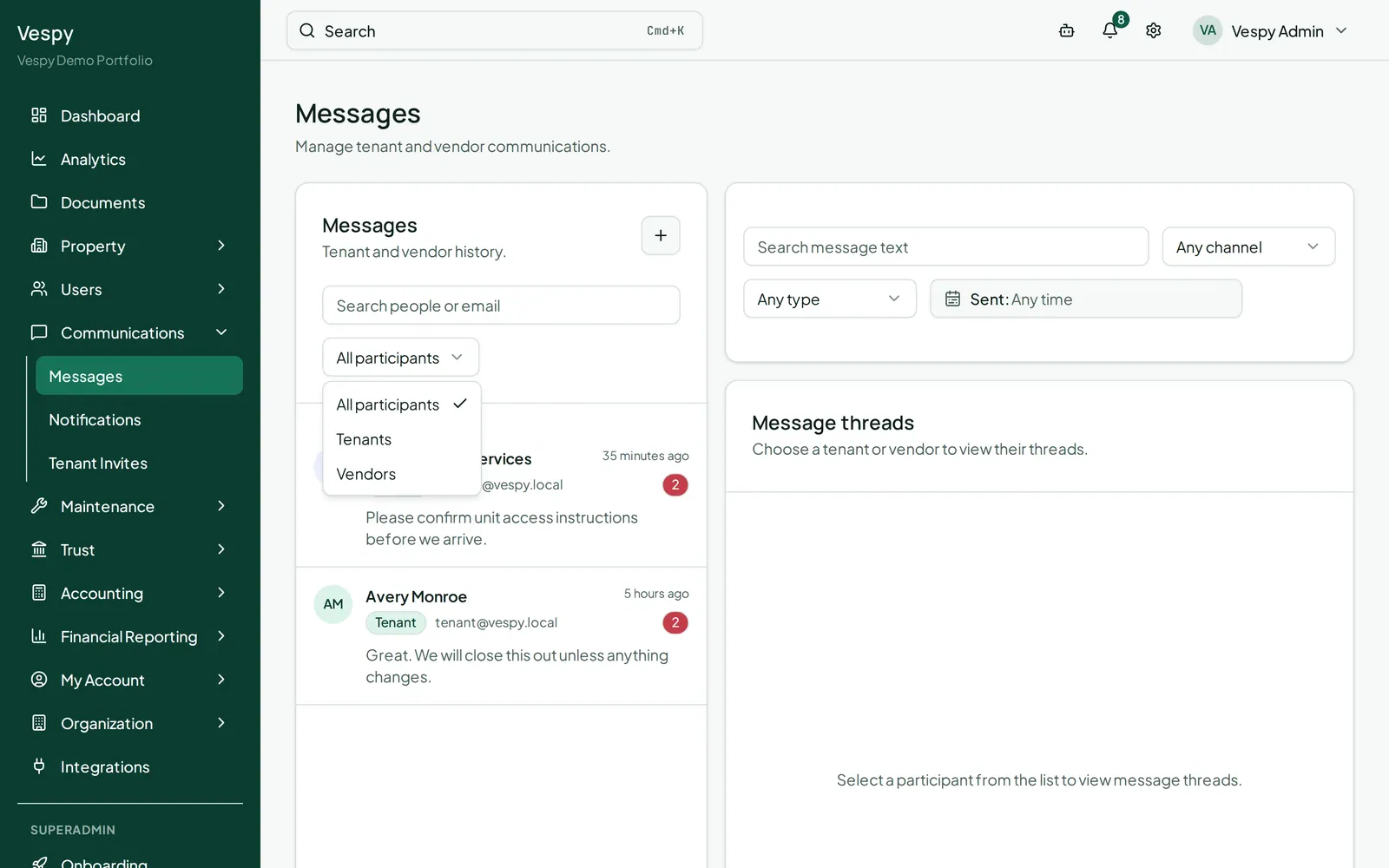
Section titled “1. Find a conversation”The left pane lists every participant, sorted by most recent activity, with an unread badge and a last-message preview. Filter by All participants / Tenants / Vendors, or search by name or email.
2. Reply
Section titled “2. Reply”Open a thread to see the full history as chat bubbles, each labeled with who sent it and which channel it went through (in-app, email, or SMS). The reply box only offers channels that participant actually has an email or phone number for. Replying by email lets you pick which of your connected email accounts to send From. Press Enter to send, or Shift+Enter for a new line.
3. Start a new conversation
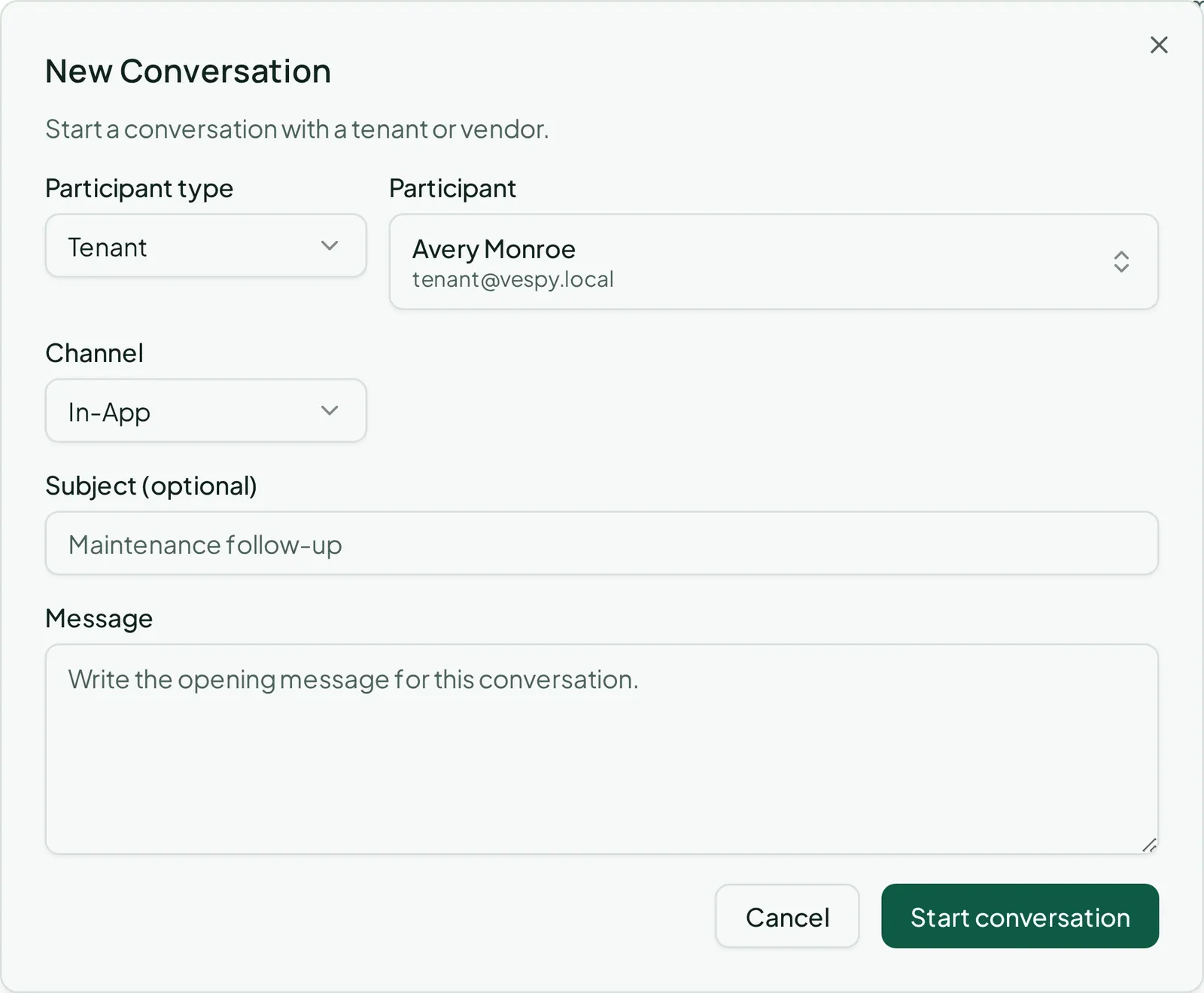
Section titled “3. Start a new conversation”Click compose, pick a tenant or vendor, choose a channel, and write your message (with an optional subject if you’re starting a new email thread).
4. Wrap up or export
Section titled “4. Wrap up or export”Close a thread once it’s resolved — the reply box disappears, and it moves out of your active list. Need a record of the whole conversation? Export to PDF from the thread header.
Searching everything at once
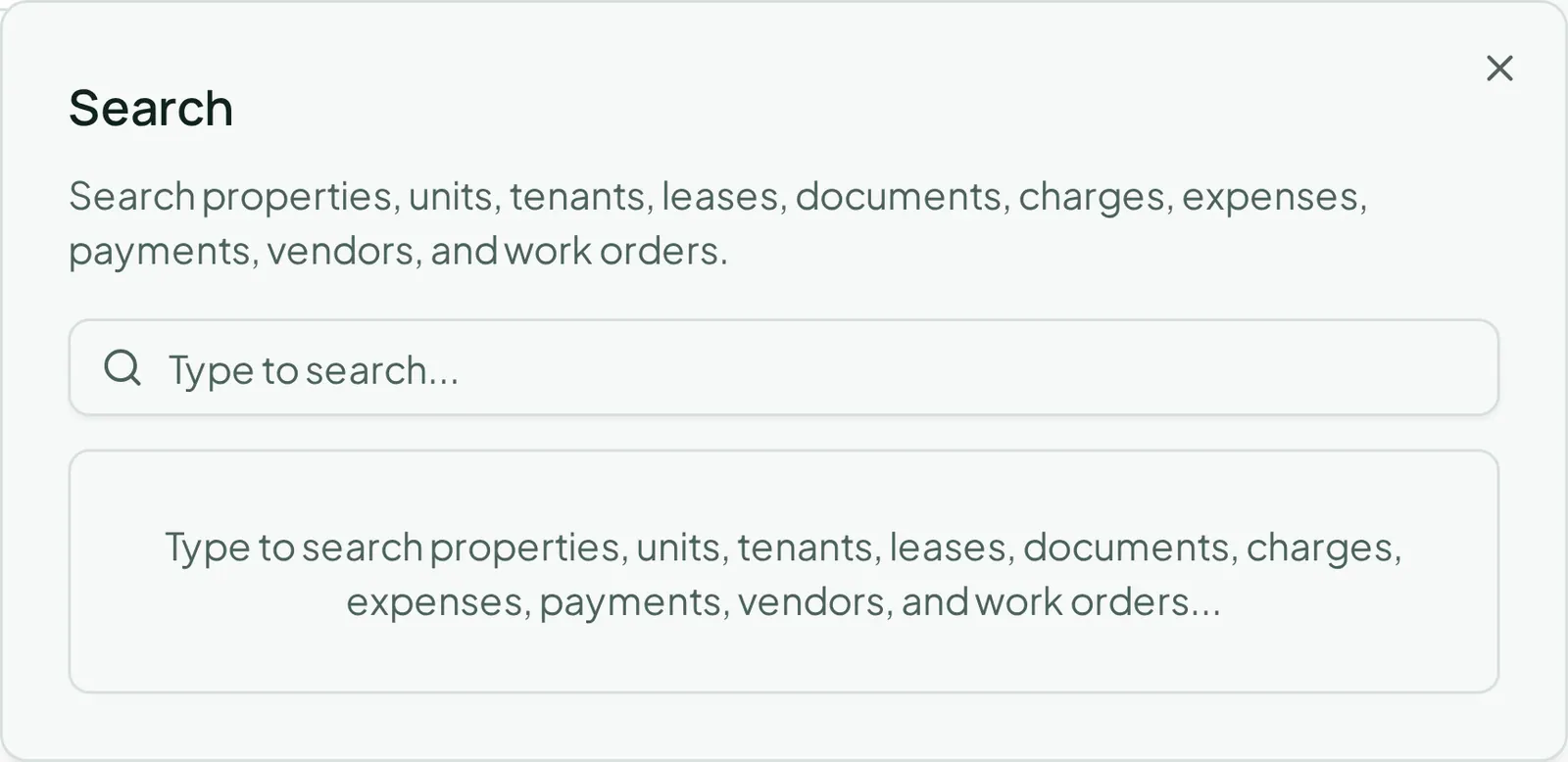
Section titled “Searching everything at once”Above the inbox, a separate search looks across every message org-wide — filter by channel, participant type, and a date range. Clicking a result jumps straight to that message, highlighted in its thread.
Afterwards
Section titled “Afterwards”- Notifications and sending a blast — for reaching many tenants at once instead of one conversation at a time.