Billing rent and collecting payments
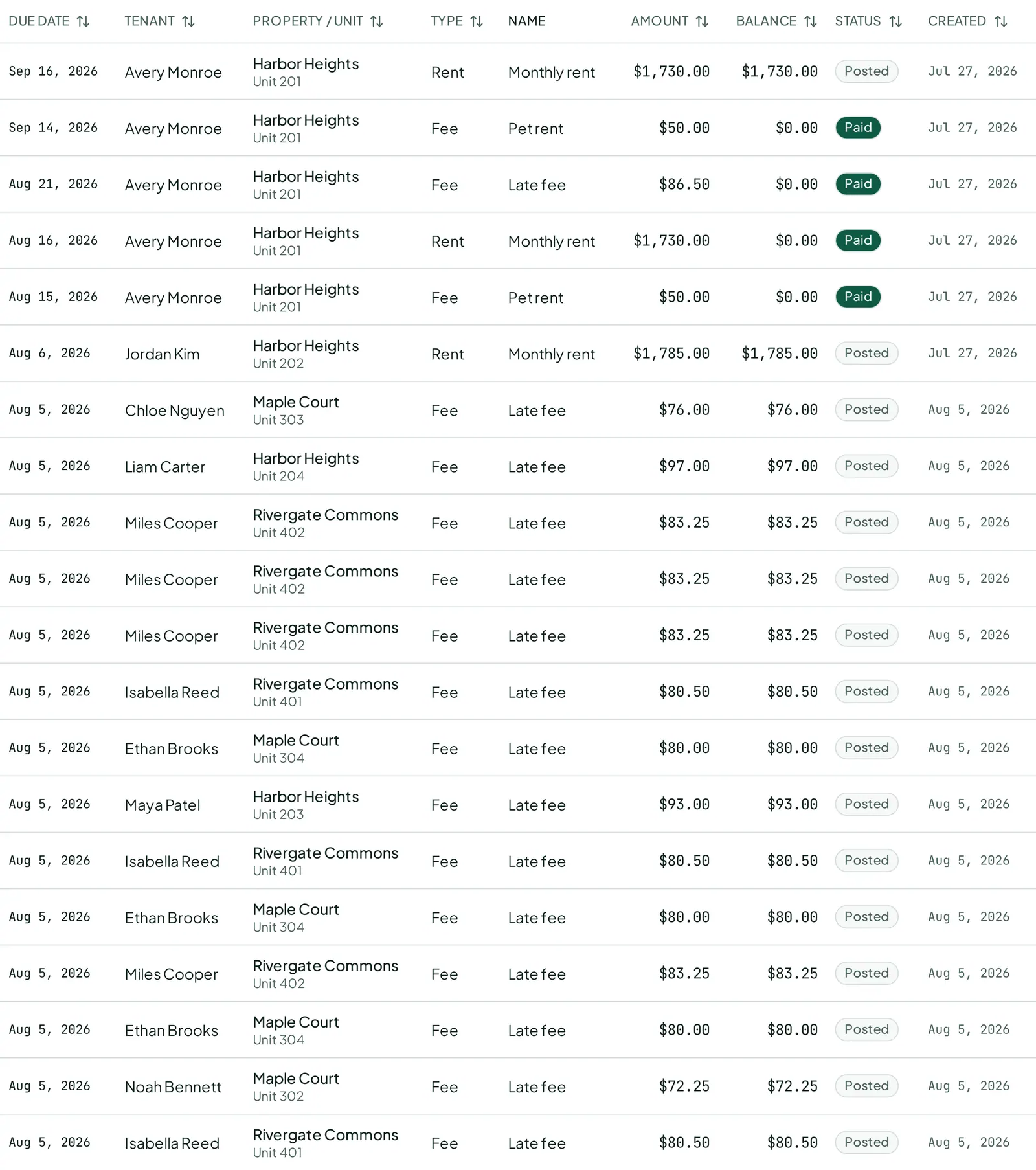
A charge is what’s owed. A payment is money received. Nothing is “paid” until a payment is allocated to a charge — and Vespy lets you record the money now and sort out which charge it covers later, if that’s easier in the moment.
Rent bills itself
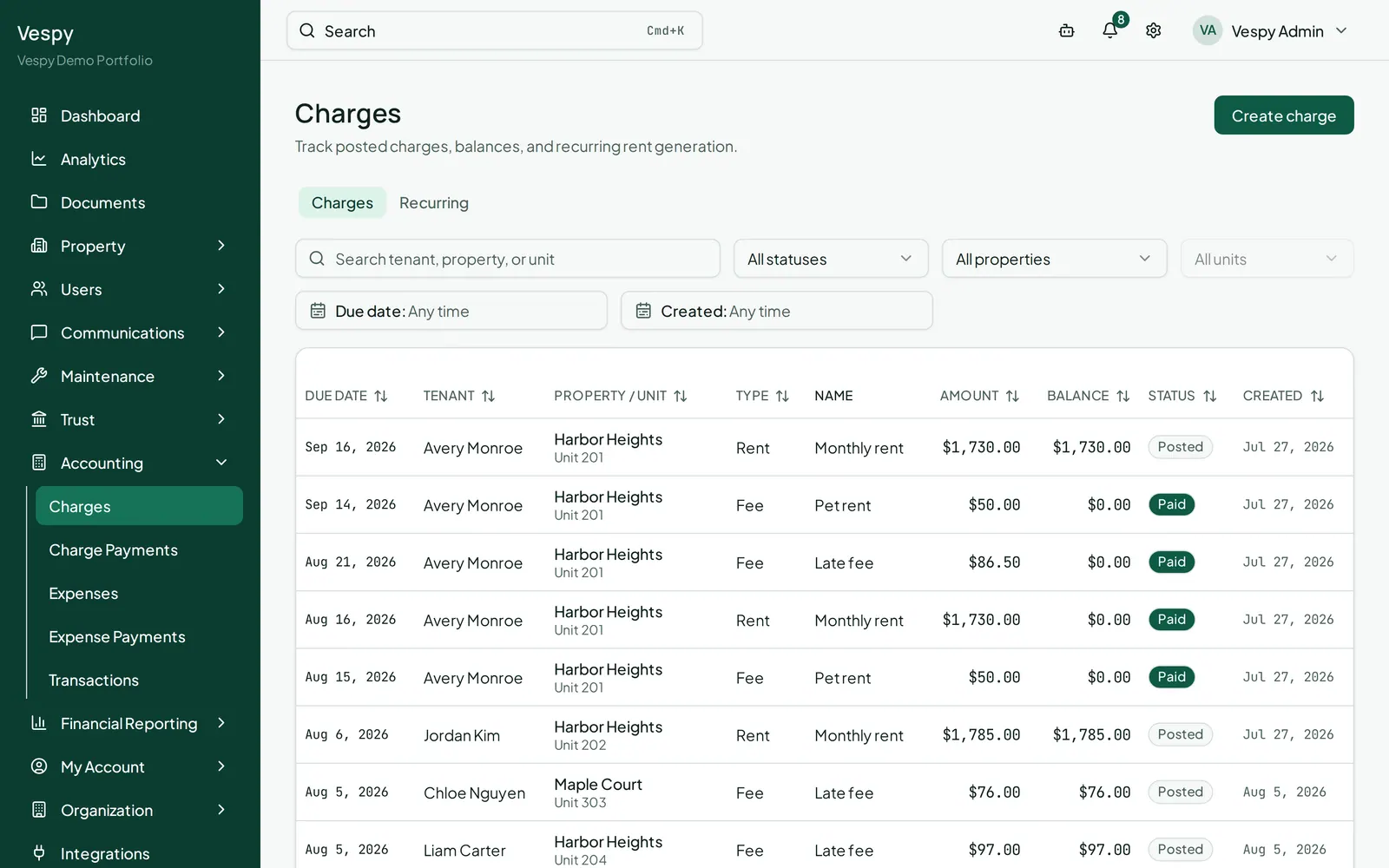
Section titled “Rent bills itself”Once a lease is active, its rent charge day already generates a monthly rent charge — you don’t create rent charges by hand. What follows is for everything else.
1. Bill something one-off, or set it up as recurring
Section titled “1. Bill something one-off, or set it up as recurring”Go to Accounting > Charges and click Create charge. Fill in:
- Lease (or check Create without lease to pick a Tenant / Property / Unit manually instead)
- Category — where this lands in your chart of accounts
- Amount, Due date
- Name and Description (optional)
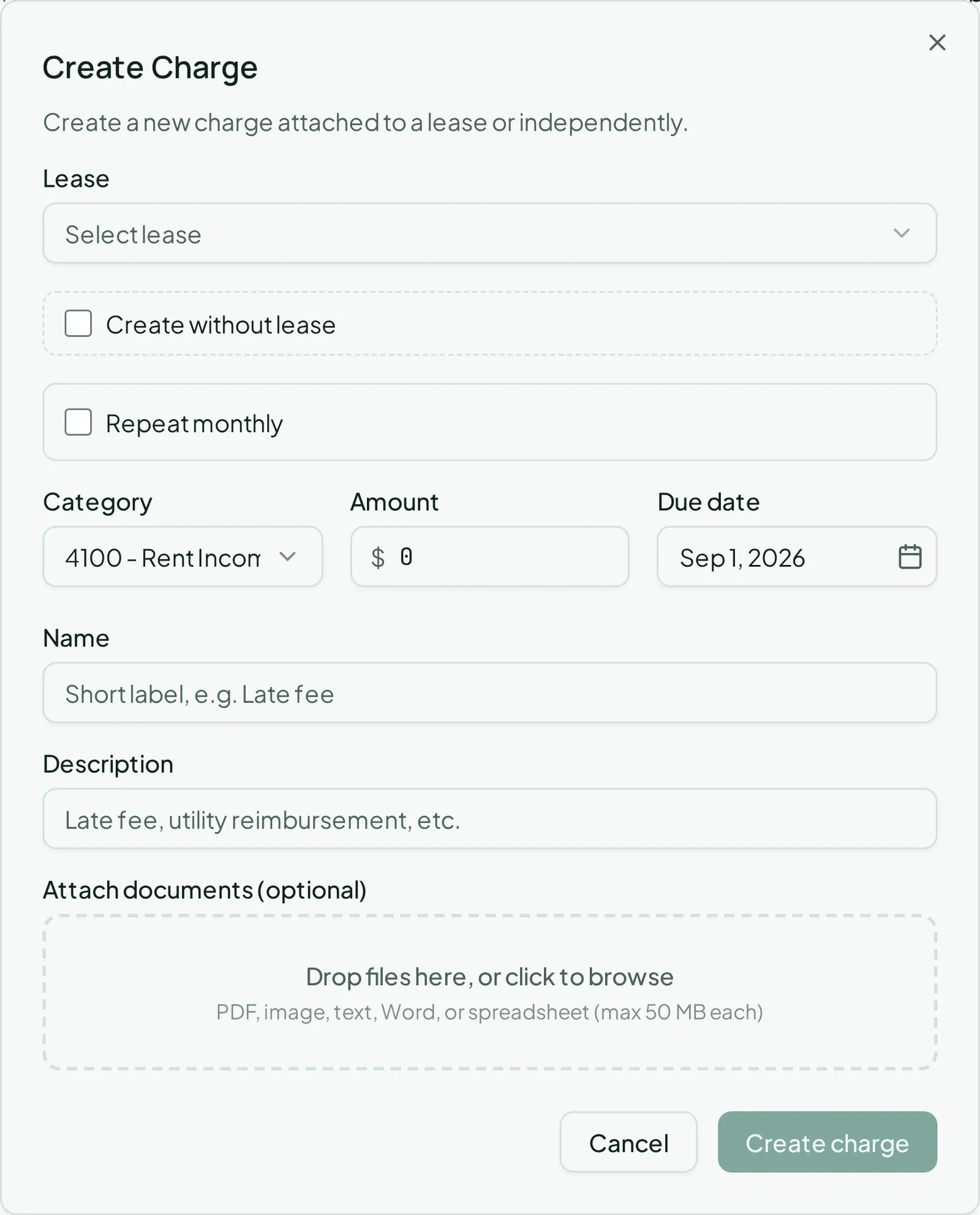
To make it repeat instead of billing once, check Repeat monthly. This reveals Day of month and End date fields, and — if the unit has fee templates set up — a Prefill from unit template dropdown so you don’t have to retype a recurring parking or storage fee.
2. Find and manage recurring charges later
Section titled “2. Find and manage recurring charges later”The Charges page has a Recurring tab next to Charges — that’s where existing recurring rules live. Open one to pause, resume, or delete it, or to change its day of month and end date.
3. Record a payment
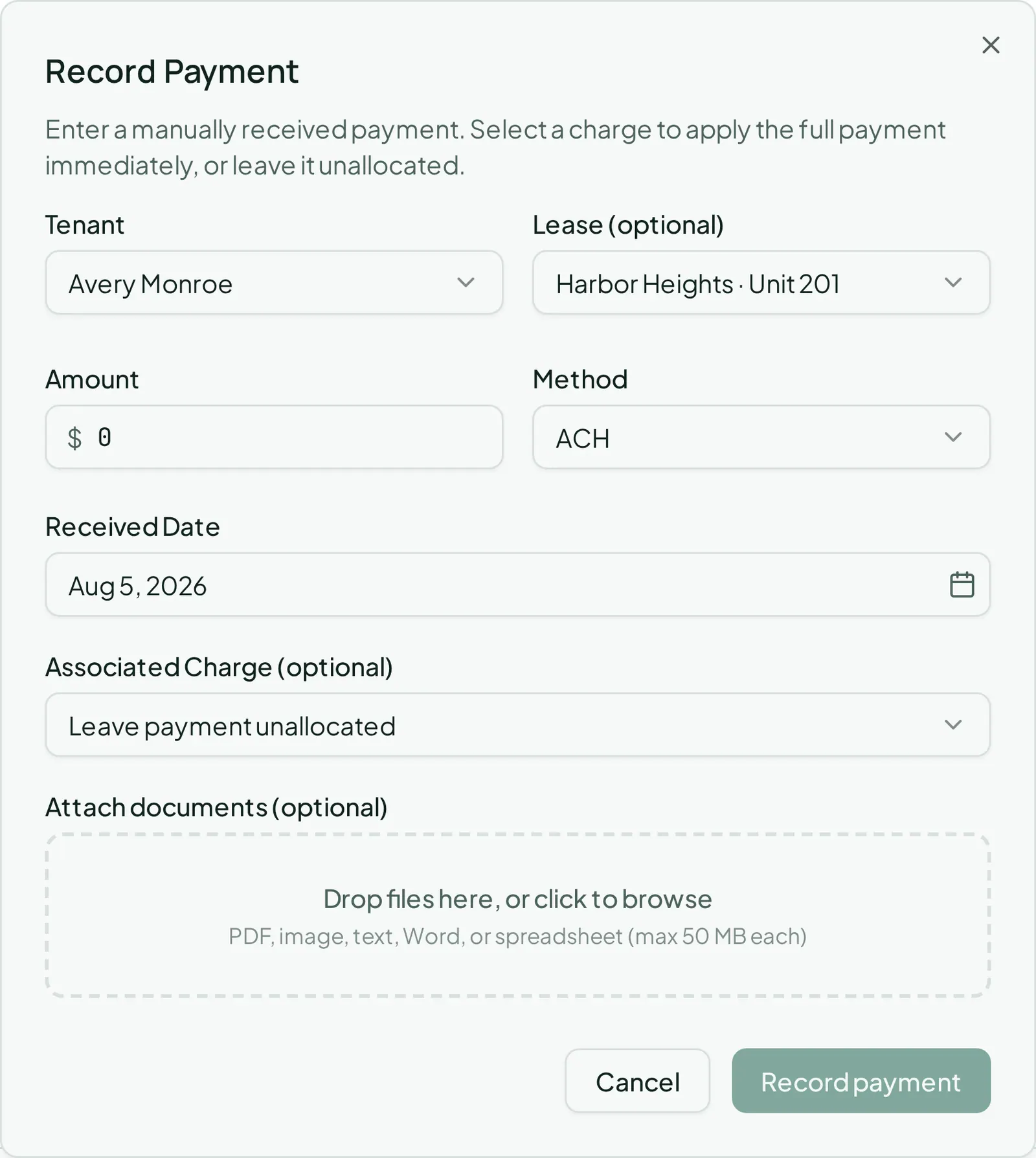
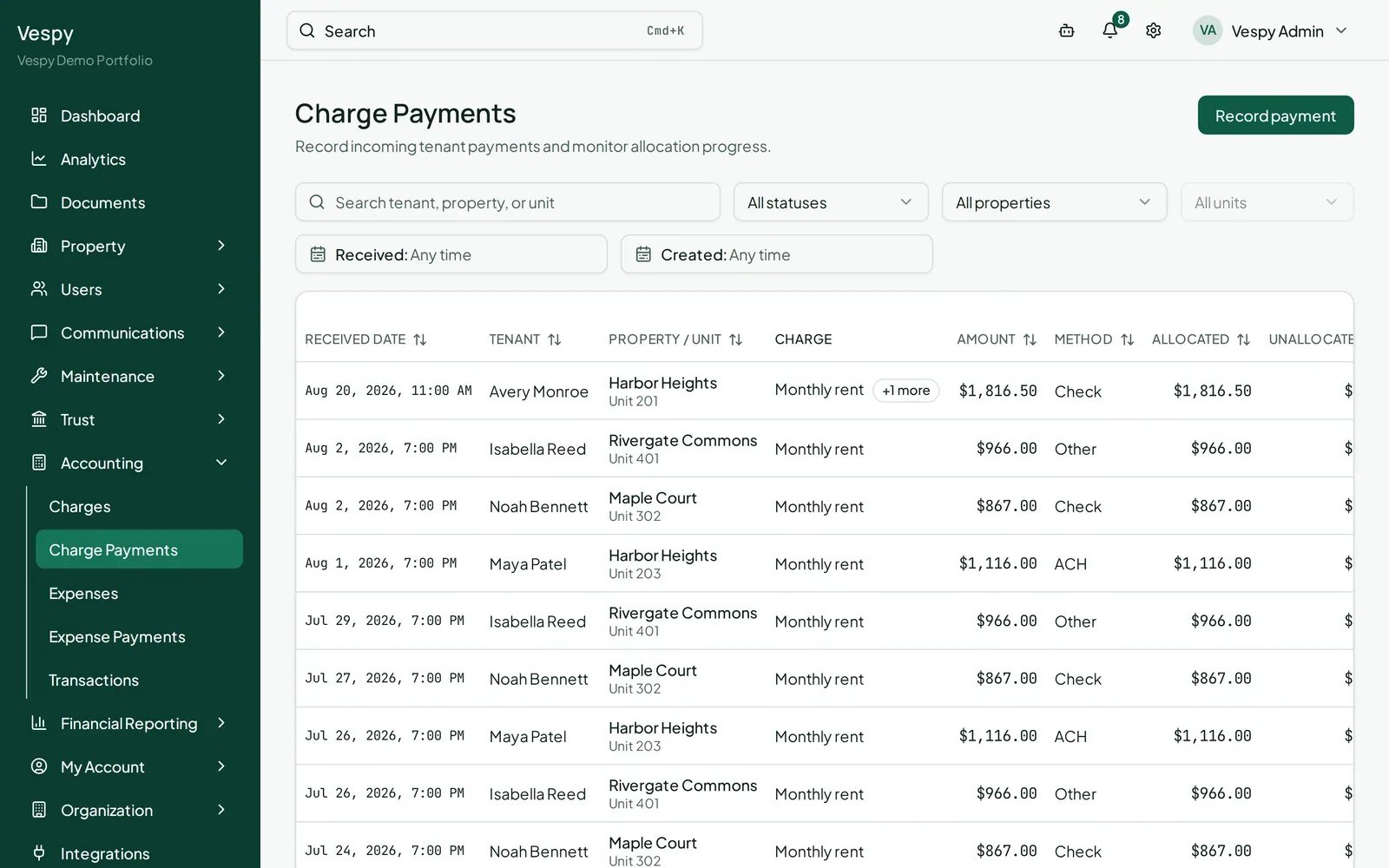
Section titled “3. Record a payment”Go to Accounting > Charge Payments and click Record payment. Fill in:
- Tenant
- Lease (optional)
- Amount
- Method — ACH, Card, Cash, Check, or Other (Check # appears if you pick Check)
- Received Date
- Associated Charge (optional) — pick one of the tenant’s outstanding charges and the amount auto-fills to what’s owed, fully settling it. Leave this as “Leave payment unallocated” to record the money now and sort out the allocation later.
4. Split a payment across multiple charges, or fix a mistake
Section titled “4. Split a payment across multiple charges, or fix a mistake”Open the payment from the Charge Payments list to reach its detail page:
- Allocate payment — for money you left unallocated, split it across several outstanding charges with a dollar amount per charge.
- Each existing allocation has its own Edit (change the amount) and Remove buttons.
- Reverse payment undoes it entirely — but only while it has zero allocations.
- If the payment is still pending (a check that hasn’t cleared, for example), an admin sees Mark received / Mark failed buttons here.
Afterwards
Section titled “Afterwards”- Handling a security deposit — deposits are tracked separately from this ledger.
- Tenants paying through their own portal login create these same payment records automatically — see Inviting a tenant to the portal.