Closing the books each month
Everything else in these guides — charges, payments, expenses, deposits — posts to your books as it happens. Closing a period is what locks a month down once you’re confident it’s accurate.
1. Find the period
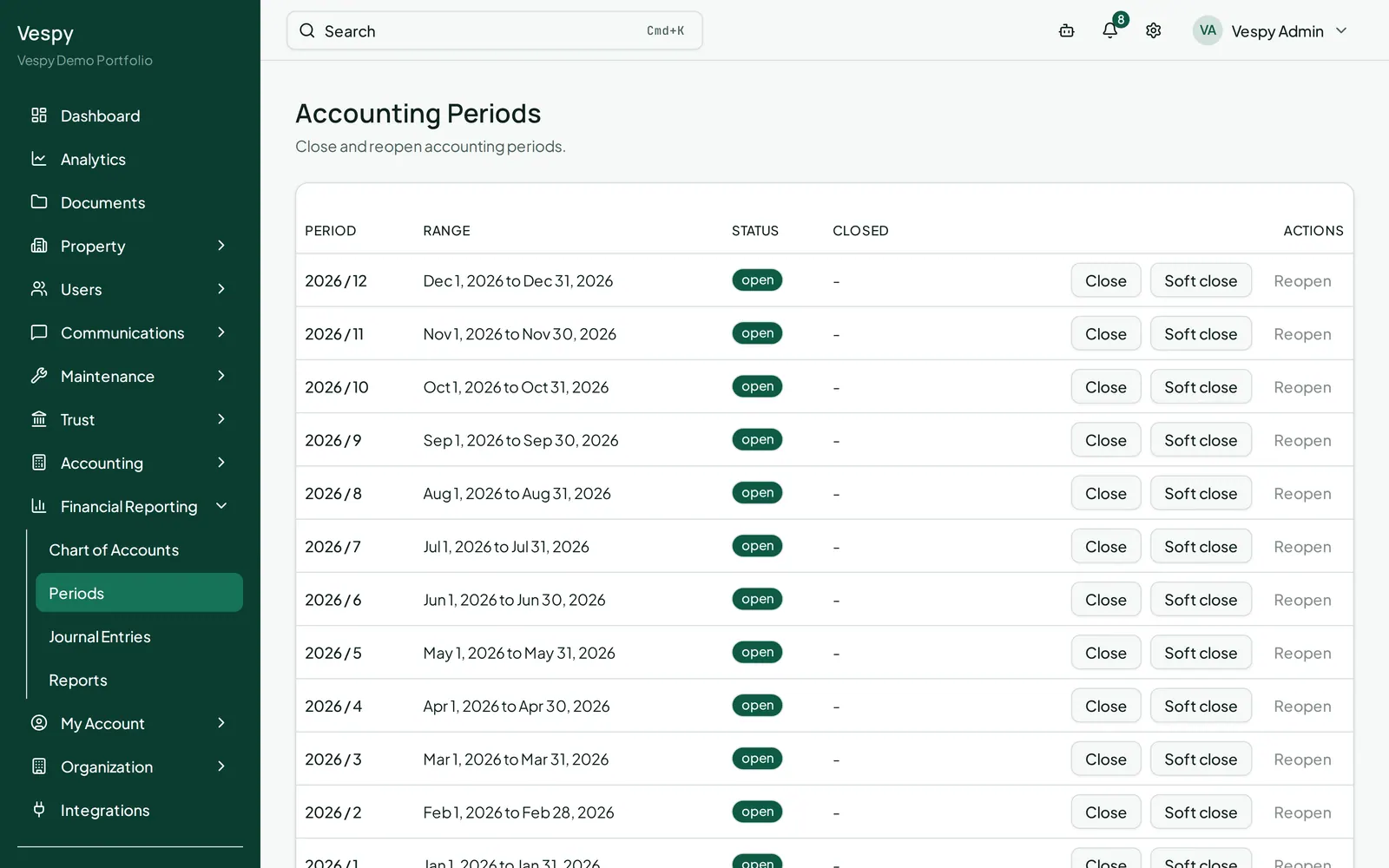
Section titled “1. Find the period”Go to Financial Reporting > Periods. Periods are generated for you automatically, one per month — there’s nothing to create here, just periods waiting to be reviewed and closed, each showing a status of Open, Soft Closed, Closed, or Reopened.
2. Close it, with a safety check built in
Section titled “2. Close it, with a safety check built in”Click Close on the period you’re ready to lock. Before it lets you confirm, a dialog shows a pre-close checklist:
- Unreconciled bank items
- Pending approvals
- Draft journals
- Unapplied received payments
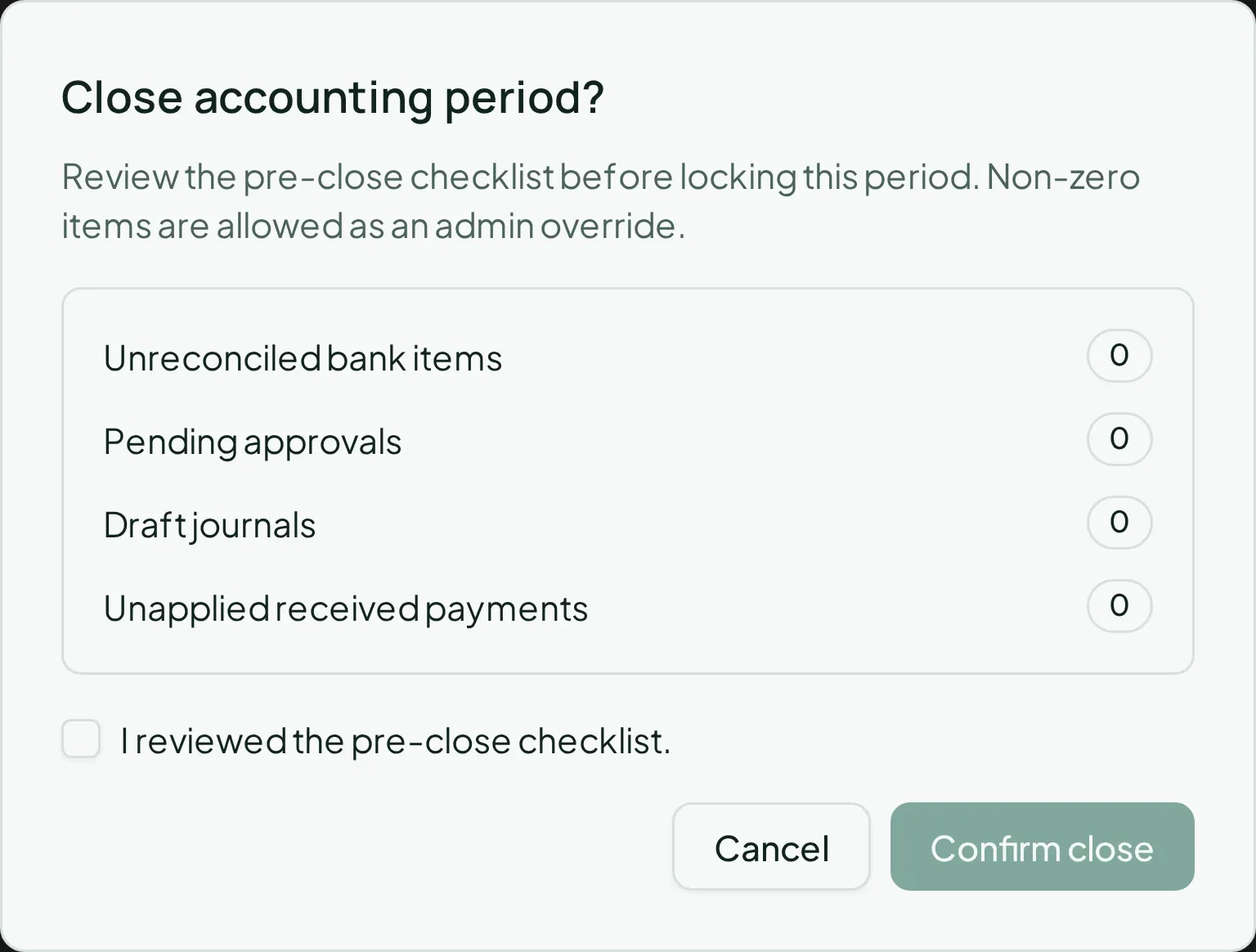
If any of these are non-zero, a warning banner calls it out — worth resolving first, but not a hard block. Check “I reviewed the pre-close checklist” and click Confirm close.
Prefer to flag a period as settling without fully locking it yet? Click Soft close instead — a lighter warning shot rather than the full close.
3. Post a manual journal entry
Section titled “3. Post a manual journal entry”Almost everything posts automatically from the workflows elsewhere in these guides. A manual entry is for the rare case that doesn’t — an owner contribution, a correction between accounts. Go to Financial Reporting > Journal Entries:
- Memo, Date
- A line for each side of the entry — an account, and either a debit or a credit amount (never both), plus an optional description per line. Click Add line for more than two.
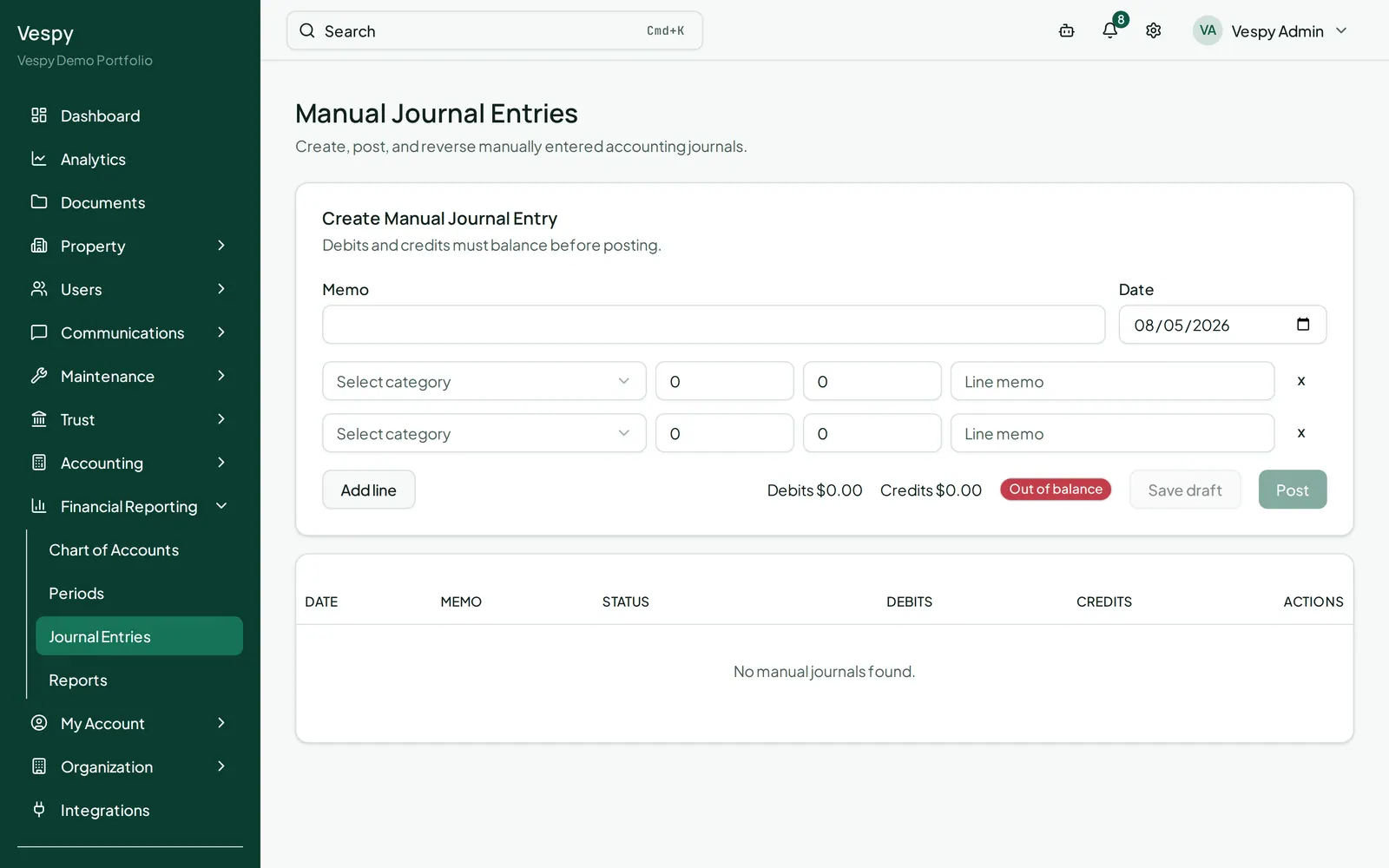
A running Balanced / Out of balance badge shows whether your debits and credits match — they have to, before you can post. Click Save draft to hold it for review, or Post to post it immediately.
Existing entries can be Posted later if saved as a draft, or Reversed if already posted (which creates an offsetting entry rather than deleting the original — you’ll be asked for a reversal date).
4. Check that everything balances
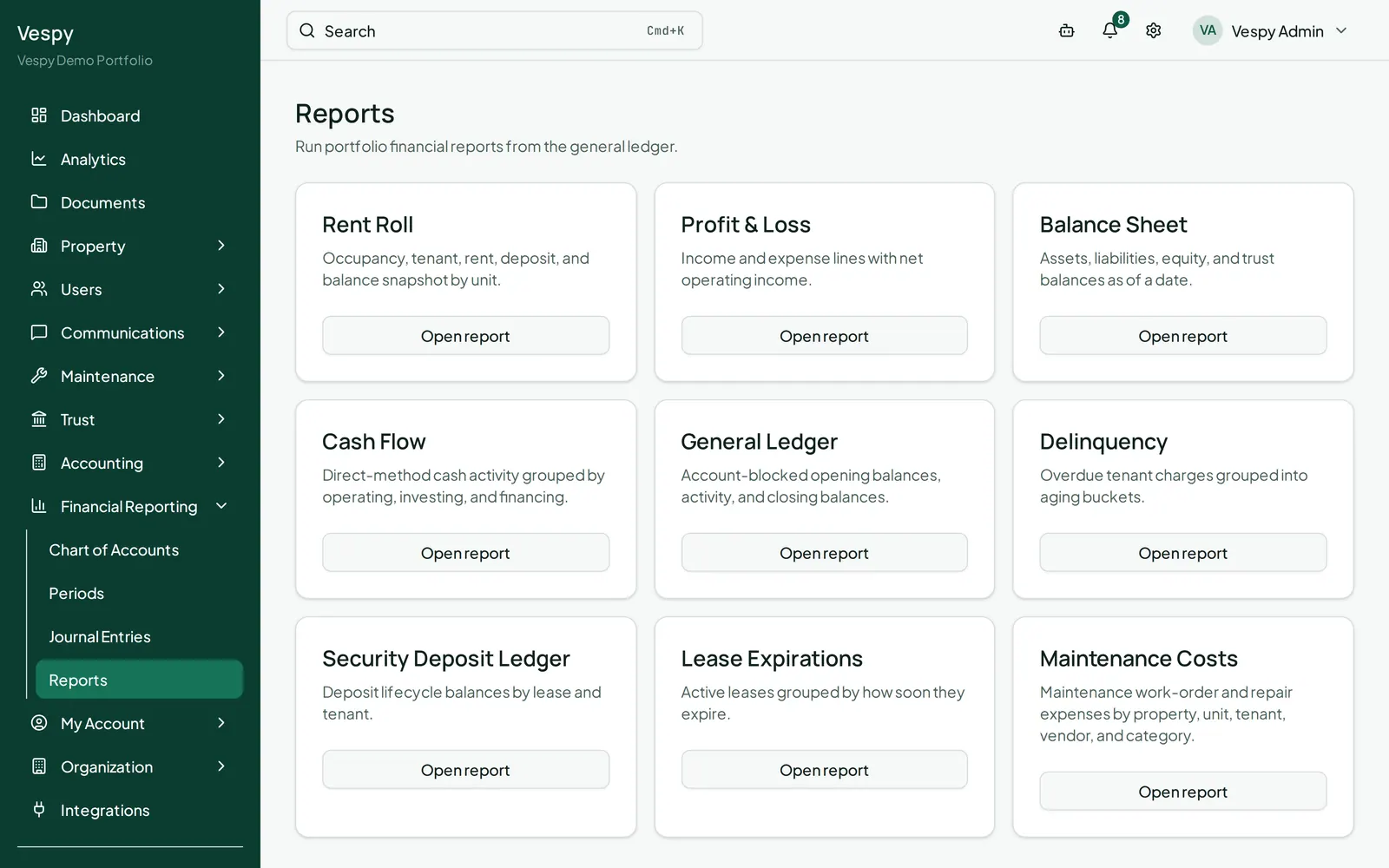
Section titled “4. Check that everything balances”For a full financial picture rather than a single period, use:
- Financial Reporting > Reports — Rent Roll, Profit & Loss, Balance Sheet, Cash Flow, General Ledger, and more
- Financial Reporting > Chart of Accounts — every account your organization posts to
- Accounting > Transactions — a unified view of everything that’s happened
Afterwards
Section titled “Afterwards”- Handling a security deposit — trust reconciliation feeds directly into the pre-close checks above.