Generating an AI lease draft
Open a lease and click Generate draft (in the header action menu, next to Renew and End lease early) to have Vespy write a first pass at the lease agreement text based on the lease’s own terms.
1. Generate
Section titled “1. Generate”A summary strip confirms the tenant, property/unit, and term dates the draft will be based on.
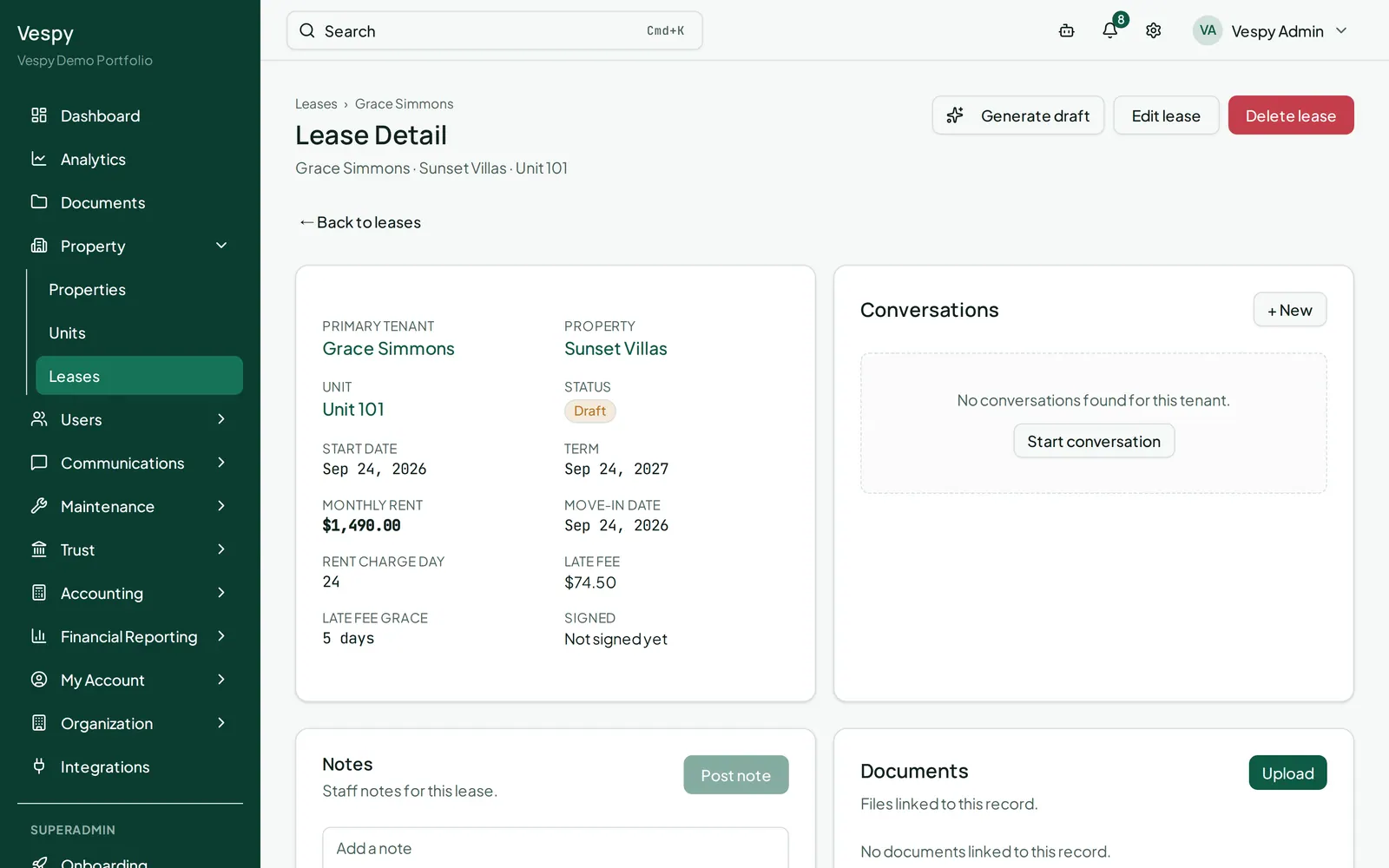
Click Generate. The draft streams into a large text box as plain lease language.
2. Edit it
Section titled “2. Edit it”Everything in the text box is freely editable — treat it as a starting point, not a final document. If you want a completely fresh attempt instead of hand-editing, click Regenerate; it replaces the current text entirely rather than adding to it.
3. Save it
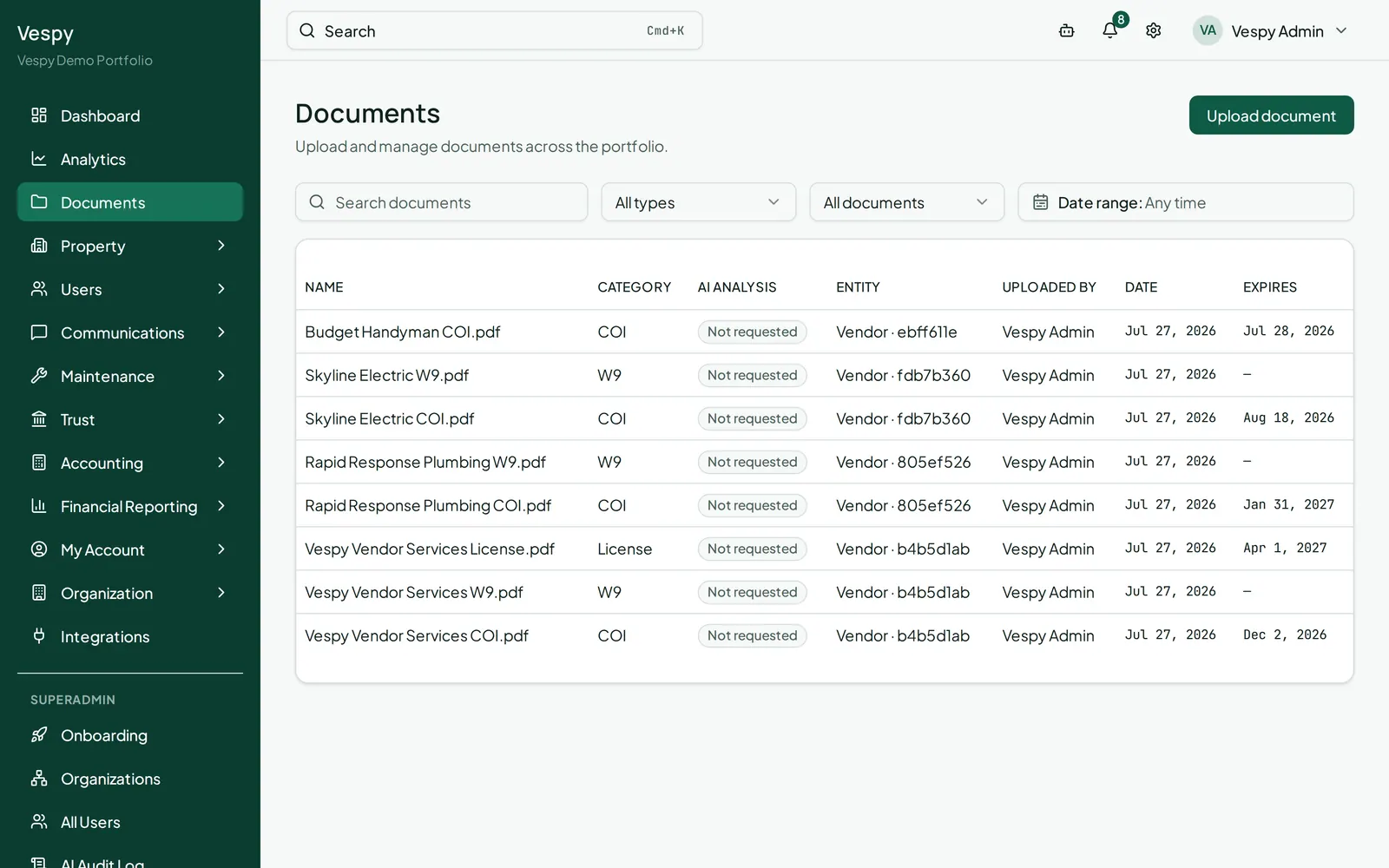
Section titled “3. Save it”Click Save draft to turn the text into an actual document attached to the lease, so it shows up alongside the lease’s other documents from then on.
Afterwards
Section titled “Afterwards”- Onboarding a property — where the lease you’re drafting for was created.
- Managing the document library — where the saved draft lives once you save it.