Reconciling CAM recoveries
Most commercial leases pass some or all of the property’s operating costs (CAM, real estate taxes, insurance, utilities) through to the tenants. The tenant pays a monthly estimate during the year. After the year closes, you work out what their share actually came to and bill the shortfall or credit the overpayment. That year-end reconciliation is what this guide covers.
expenses ─→ pool ─→ gross-up ─→ admin fee ─→ tenant share ─→ base year ─→ cap ─→ − estimates billed ─→ bill or credit1. Create the recovery pool
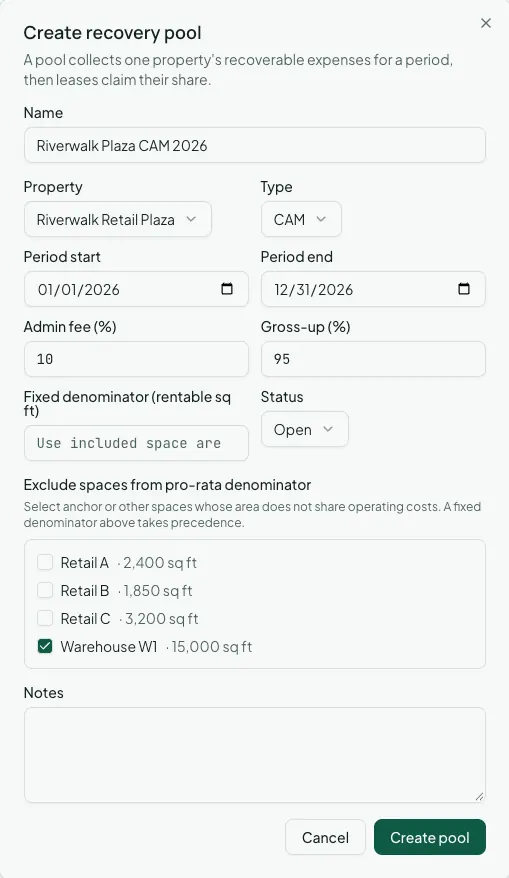
Section titled “1. Create the recovery pool”A pool is one property’s recoverable expenses of one type, over one period, usually a calendar year. Go to Commercial > Recoveries and click Create pool:
- Name, such as
Northgate Tower CAM 2026. - Property: only commercial and mixed-use properties are listed.
- Type: CAM, Tax, Insurance, Utility, or Other. Use a separate pool for each type the leases treat differently. Taxes often have no admin fee and no cap, for example.
- Period start and Period end.
- Admin fee (%): the management or administrative fee the leases allow on top of
expenses, such as
15. - Gross-up (%) (optional): the occupancy level variable expenses are grossed up to, such
as
95. See step 2. - Fixed denominator (rentable sq ft) (optional): a fixed building area to divide by, when the leases define one, instead of adding up the suites.
- Exclude spaces from pro-rata denominator: spaces whose area doesn’t share these costs, such as an anchor tenant that pays its own. A fixed denominator takes precedence.
2. Choose the recoverable expenses
Section titled “2. Choose the recoverable expenses”Click the pool to open it. Expenses get into a pool in two ways.
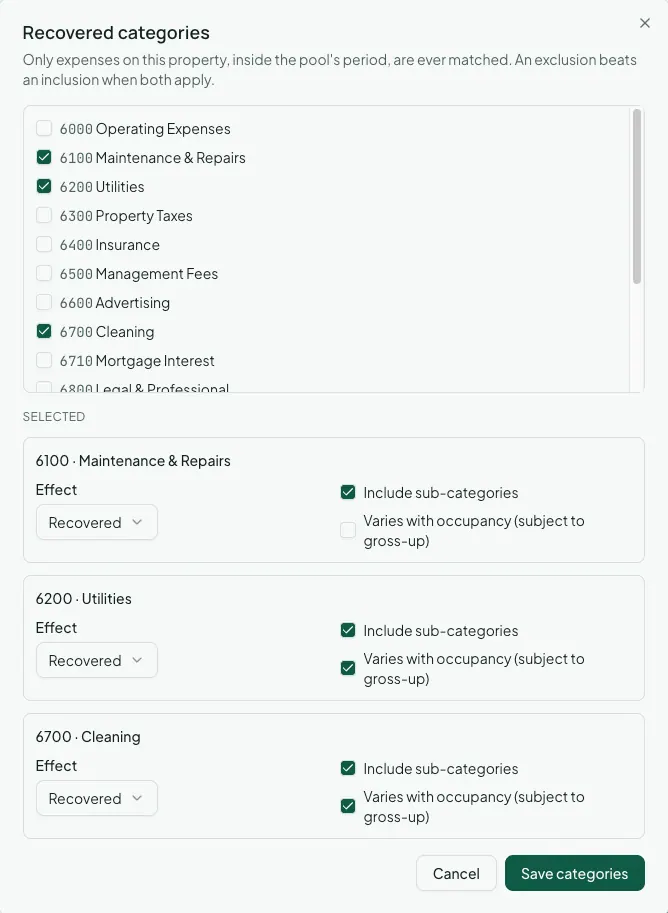
Recovered categories brings expenses in automatically. Click Edit categories, tick each expense category the leases allow you to recover, such as cleaning, landscaping, or elevator service, and for each one set:
- Effect: Recovered, or Excluded to carve a sub-category out of a broader one. An exclusion wins when both apply.
- Include sub-categories.
- Varies with occupancy (subject to gross-up): for costs that rise and fall with occupancy, like janitorial or utilities. Only these are grossed up.
From then on, every expense posted to those categories on this property, within the pool’s period, joins the pool as it posts.
Pool expenses lists everything in the pool. To carve out a single expense, such as a one-off capital repair the leases don’t allow you to recover, tick it, click Set recoverability, untick Recoverable, and give an Exclusion reason. Excluded expenses stay in the list so the carve-out can be audited.
3. Add a recovery rule to each lease
Section titled “3. Add a recovery rule to each lease”A recovery rule connects a lease to a pool and says how big its share is. Open the lease, go to the Recoveries tab, and click Add rule:
- Expense pool, and the income Category the true-up bills to.
- Share basis:
- Pro rata by sq ft: the lease’s area over the property’s area (or the pool’s fixed denominator).
- Fixed percent: a negotiated share, entered as Share (%).
- Fixed amount: a set dollar amount for the period.
- Base year amount ($) (optional): for a lease with a base year or expense stop, the tenant only pays its share above this amount.
- Cap basis and Cap (%) (optional): limits the increase to a percentage over the Base year amount or over the Prior year’s billable share.
- Estimate schedule: the lease’s billing schedule that bills the monthly estimate, such as its CAM estimate. Everything that schedule billed in the period is credited at reconciliation.
- Estimates billed before Vespy ($): for a lease you set up partway through the period, the estimates your previous system billed. They’re credited too.
4. Reconcile the pool
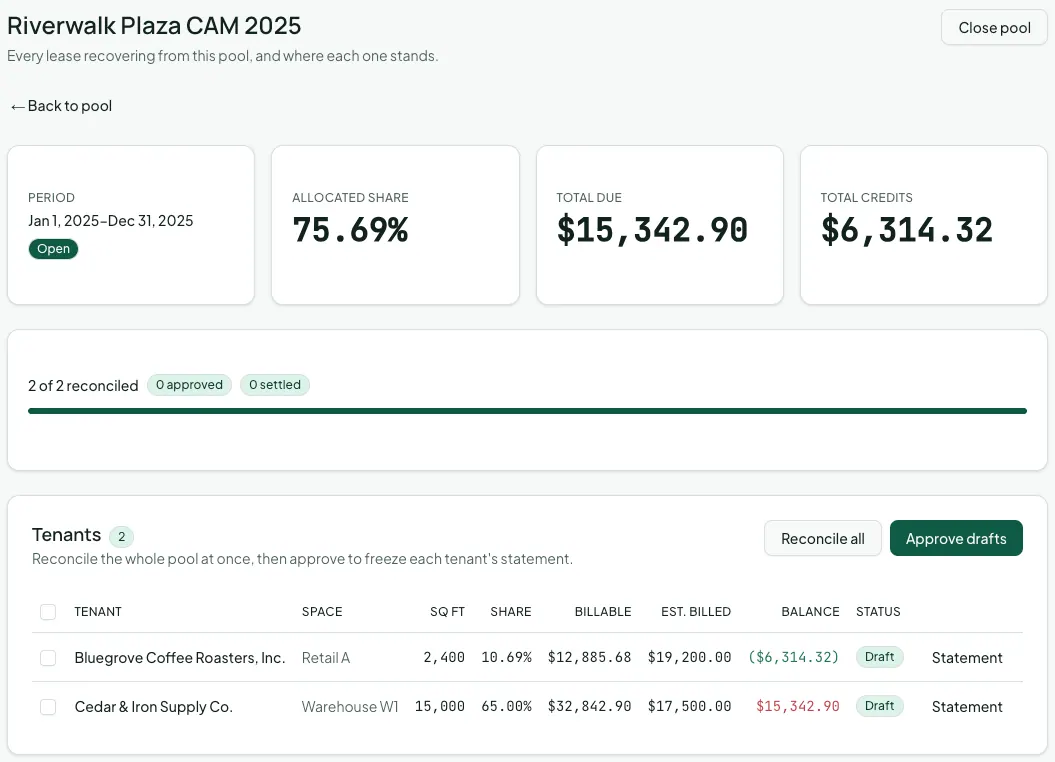
Section titled “4. Reconcile the pool”When the period’s expenses are all in, open the pool and click Reconcile tenants. The page lists every lease recovering from the pool, with each one’s square footage, share, billable amount, estimates billed, and balance. The totals at the top show how much of the pool is allocated to tenants and the total due and credited.
Click Reconcile all to calculate every lease. Each reconciliation starts as a Draft, and you can re-run it as often as you like, for example after adding a late invoice. Click Statement on any row to see the full calculation, line by line, from total pool expenses to the balance.
A tenant that leased for only part of the period pays a share prorated to its days under lease.
When the numbers are right, click Approve drafts. Approving freezes each tenant’s statement exactly as it will be issued. Unapprove on the lease’s Recoveries tab reopens one if you find a problem.
5. Bill or credit each tenant
Section titled “5. Bill or credit each tenant”On each lease’s Recoveries tab, an approved reconciliation shows one of two actions:
- Bill, when the tenant owes more than its estimates: posts a charge for the balance to the tenant’s ledger.
- Credit, when the tenant overpaid: issues a credit memo for the difference, which you can then apply to an open charge on the Commercial AR page.
The statement also proposes Next period’s estimate, a new monthly amount based on what the tenant actually owed this year. Click Apply estimate to update the estimate schedule, so next year’s reconciliation isn’t another surprise.
Once every tenant is billed or credited, click Close pool on the reconcile page. A closed pool accepts no new reconciliations or approvals. Reopen pool undoes this, and asks for a reason.
Afterwards
Section titled “Afterwards”- Commercial reports — Recovery Reconciliation audits every pool, from actual expenses to each tenant’s true-up.
- Commercial invoices and credit memos — apply a recovery credit, or bill the true-up on an invoice.