Managing maintenance requests
Work orders are the one thing three different people touch: you manage them, the tenant reports and follows them, and the vendor does the work. Getting the status and the note visibility right matters as much as opening the request in the first place.
1. Open a work order
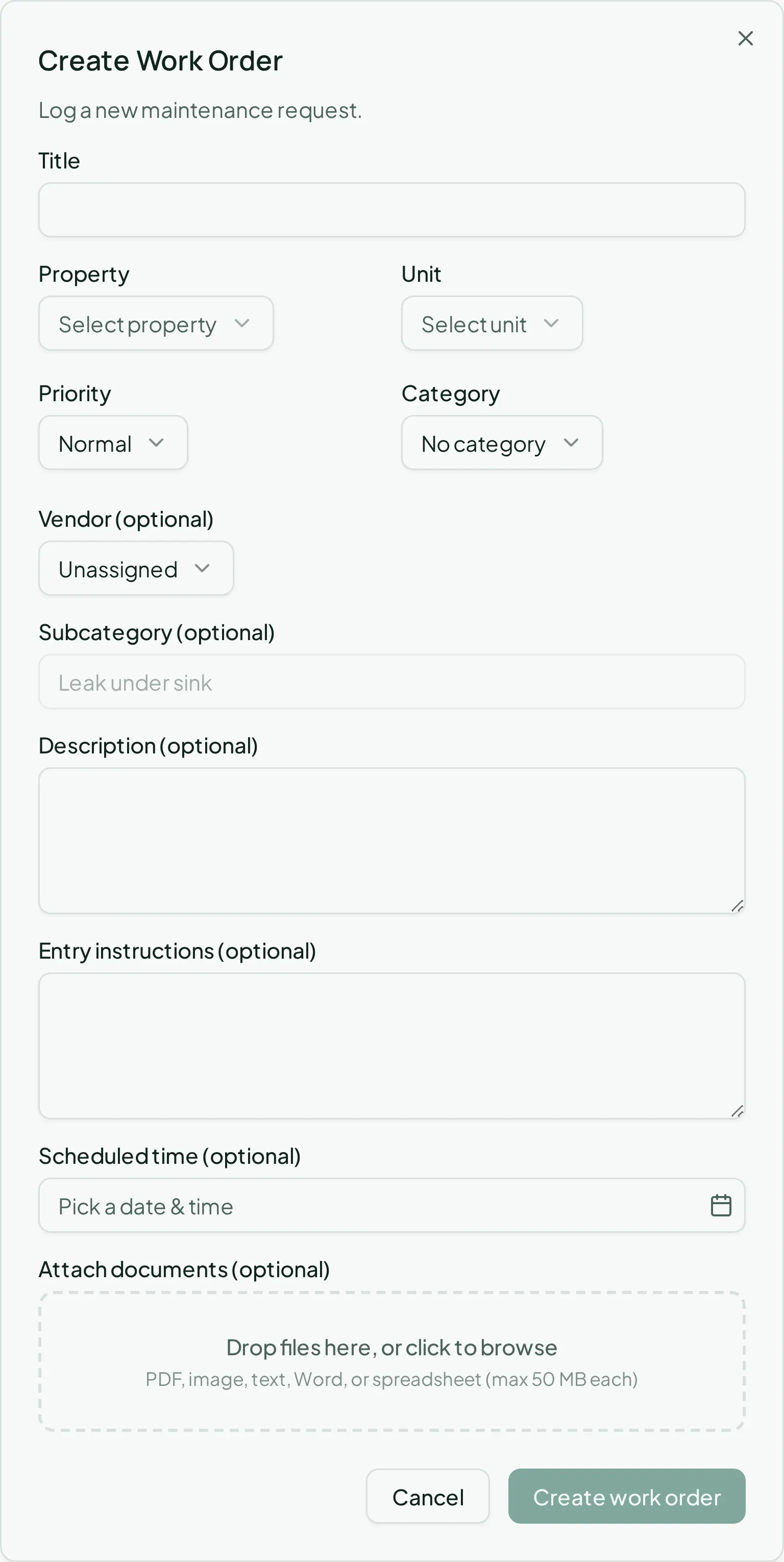
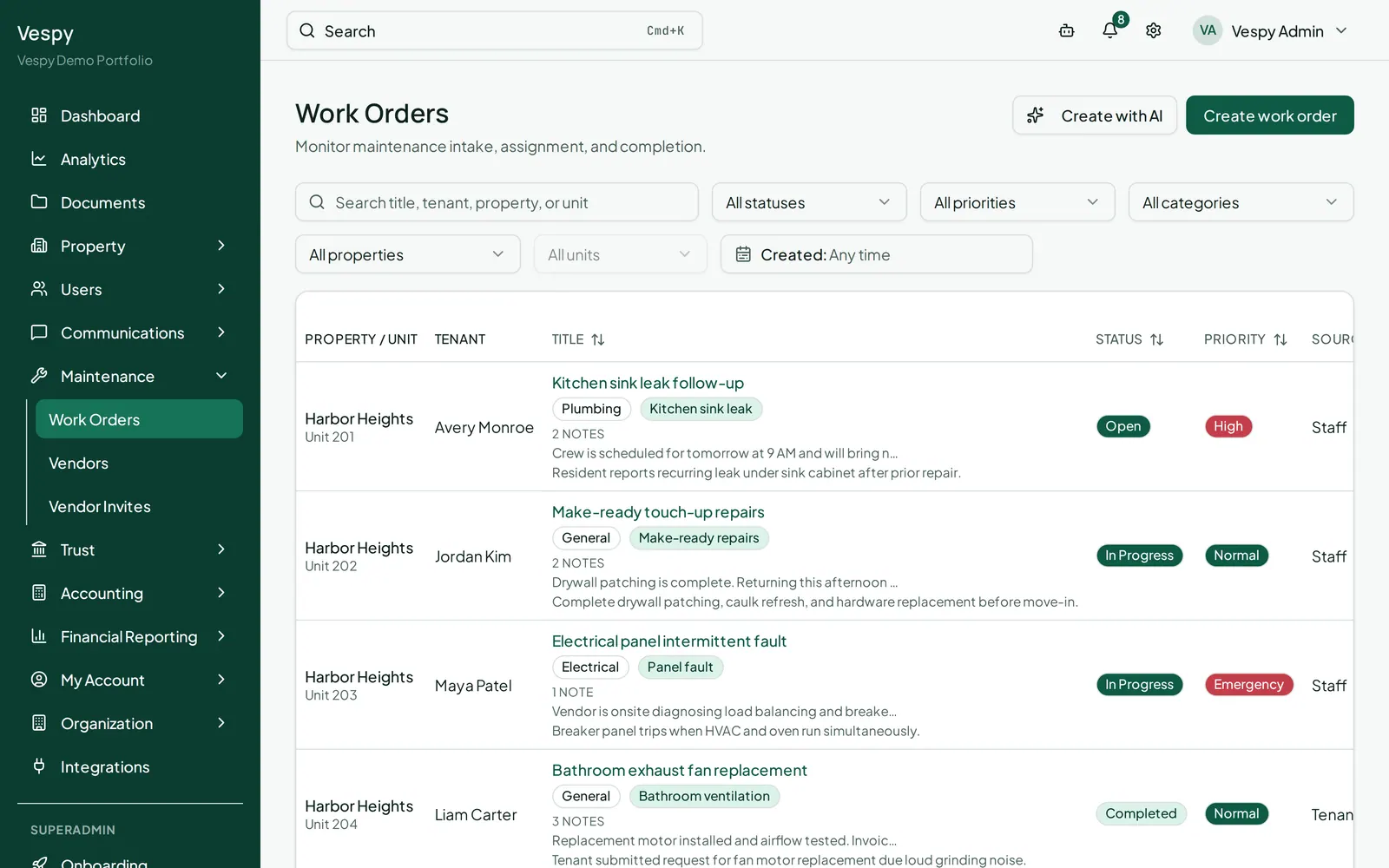
Section titled “1. Open a work order”Go to Maintenance > Work Orders and click Create work order. Fill in:
- Title, Property, Unit
- Priority — Low, Normal, High, or Emergency
- Category (and, once chosen, an optional Subcategory)
- Vendor (optional — leave as Unassigned for now if you don’t know who’s doing it)
- Description and Entry instructions (the latter auto-fills from the unit’s saved access instructions)
- Scheduled time (optional)
2. Assign it and move it forward
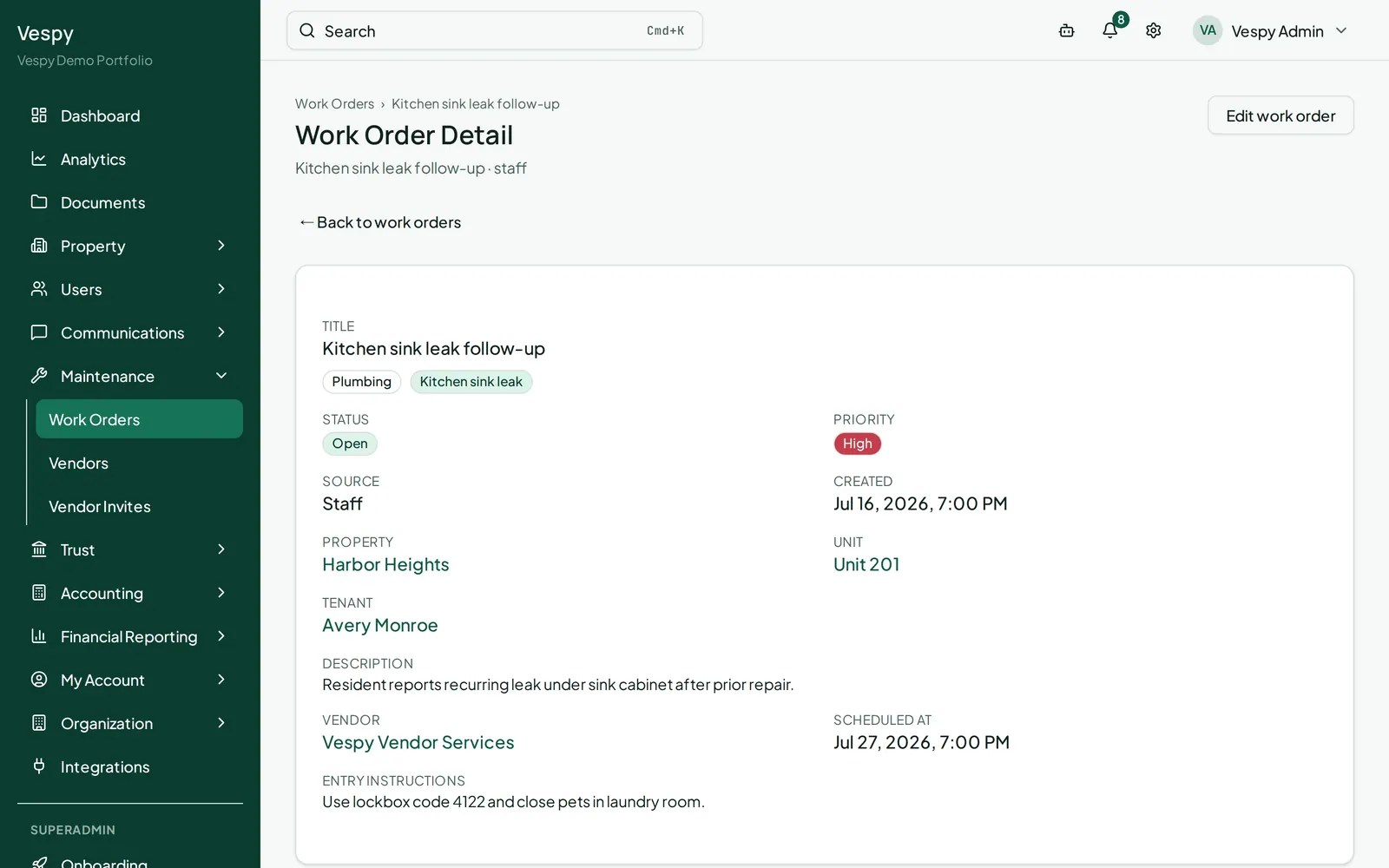
Section titled “2. Assign it and move it forward”Open the work order and click Edit work order to assign or reassign a Vendor, and to change Status. Status only offers the moves that actually make sense from where it is: open moves to in-progress or cancelled, in-progress moves to completed or cancelled, and completed/cancelled are final.
3. Keep a shared record with notes
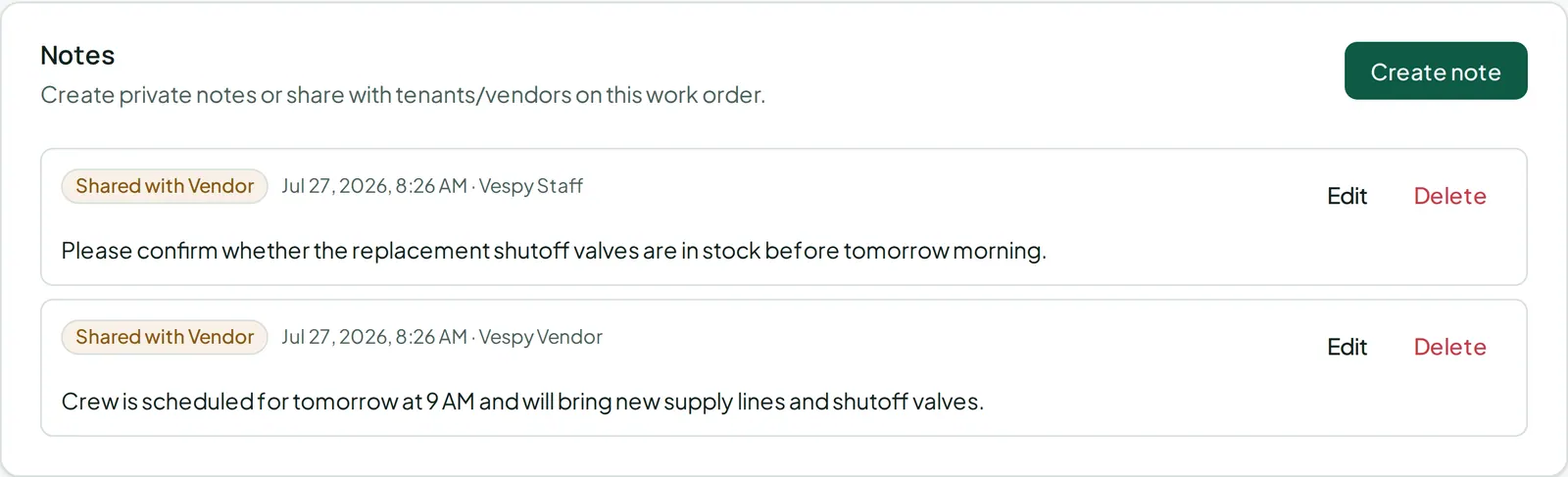
Section titled “3. Keep a shared record with notes”On the work order’s page, the Notes section lets you Create note, with a Share with option for Tenant and Vendor — leave both unchecked and it’s staff-only. Each note shows a badge for who can see it: Staff only, Shared with Tenant, Shared with Vendor, or both.
4. Track the cost
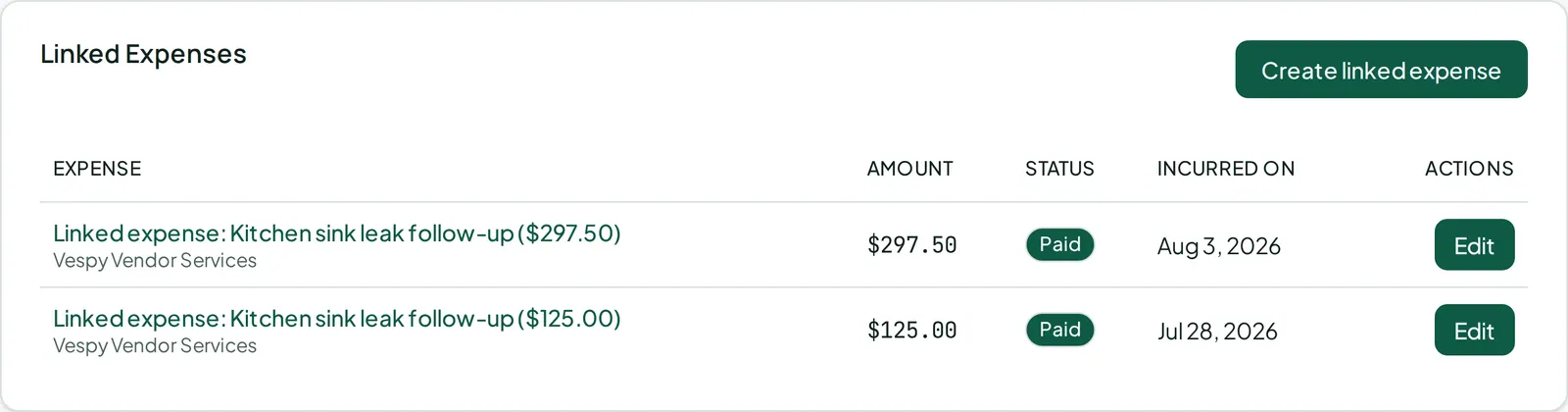
Section titled “4. Track the cost”Linking an expense to the work order (via its Create linked expense button) is what makes the job’s total cost show up right on its own page, alongside the notes and any attachments.
5. Close it out
Section titled “5. Close it out”Change Status to Completed once the work is done. It’s a final state — if the same issue comes back later, you’ll open a new work order rather than reopening this one.
What the tenant and vendor each see
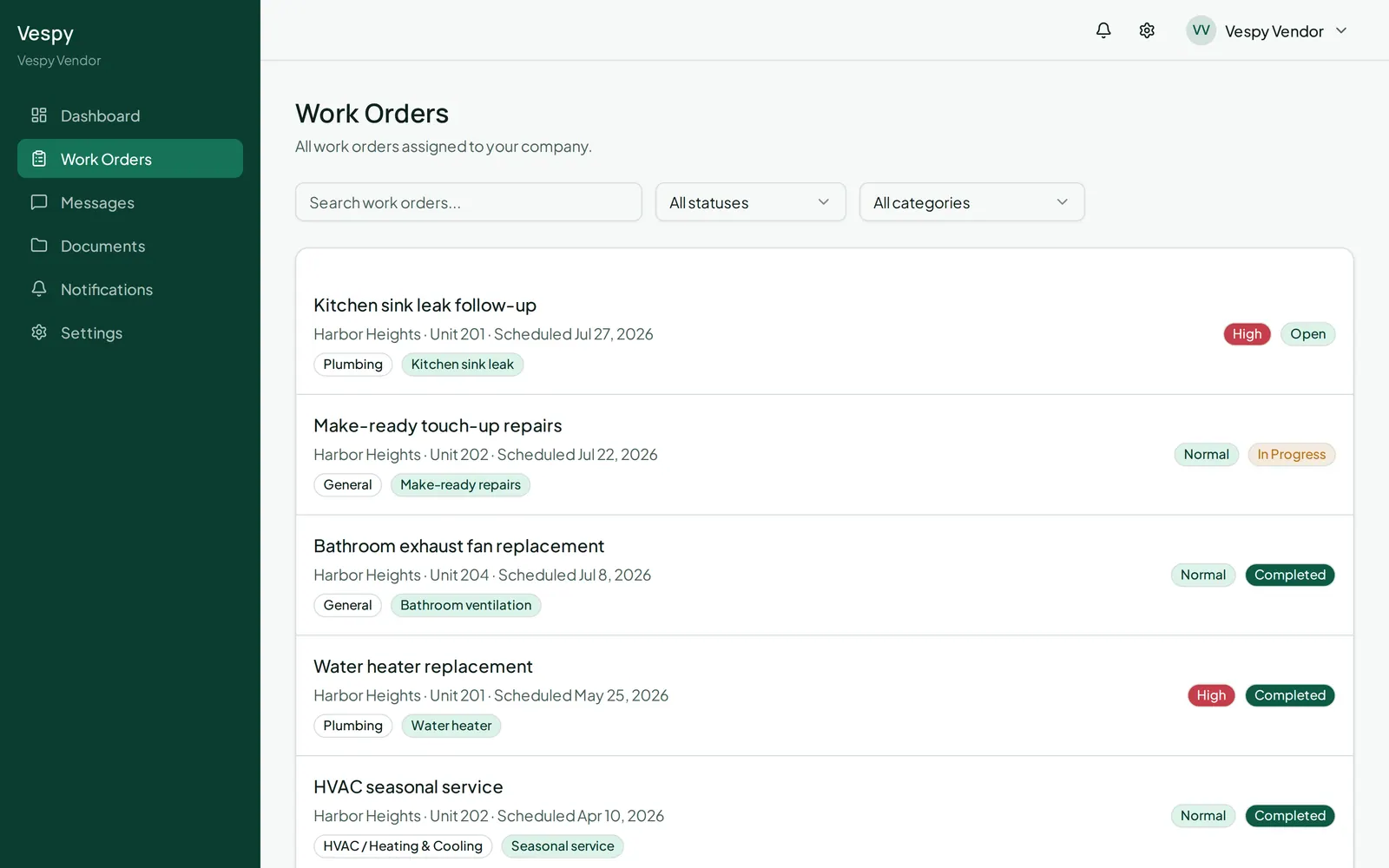
Section titled “What the tenant and vendor each see”A tenant can file their own request from their portal (title, description, issue type, urgency, and photos) — Vespy fills in their unit and lease automatically, so they can’t open one against a unit they don’t rent. A vendor can view the jobs assigned to them and add comments, but only staff can change a work order’s status.
Afterwards
Section titled “Afterwards”- Adding a vendor and paying them — who does the work, and how they get paid for it.