Filing and following up on a maintenance request
Go to Maintenance in your portal to see your past requests, or file a new one.
1. Submit a request
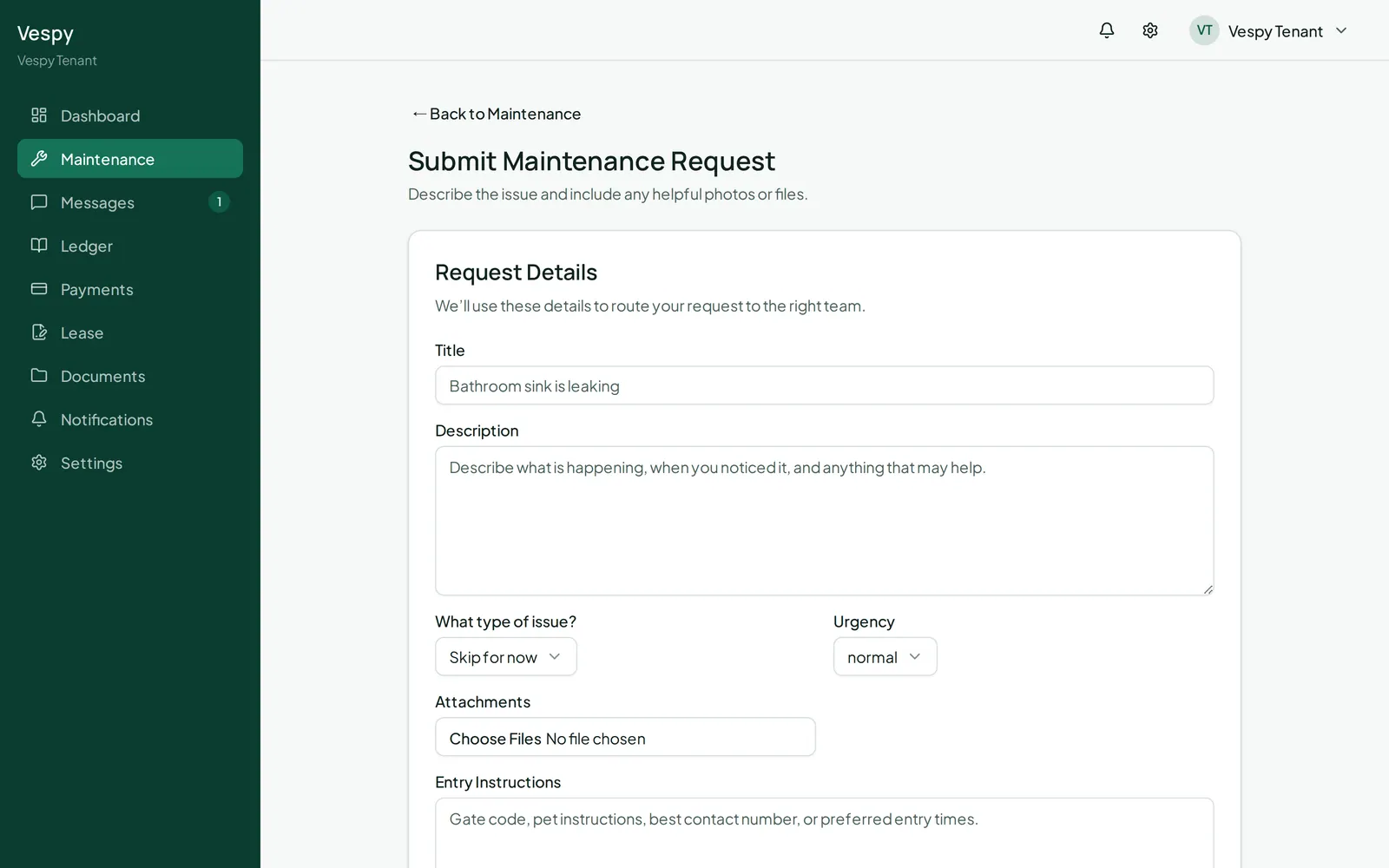
Section titled “1. Submit a request”Click Submit request and fill in:
- Title, Description
- What type of issue? — pick a category, or Skip for now
- Urgency — low, normal, high, or emergency
- Attachments — photos or files, if you have them
- Entry Instructions — anything a repair person would need to get in (a gate code, a pet on-site, and so on)
2. Track it
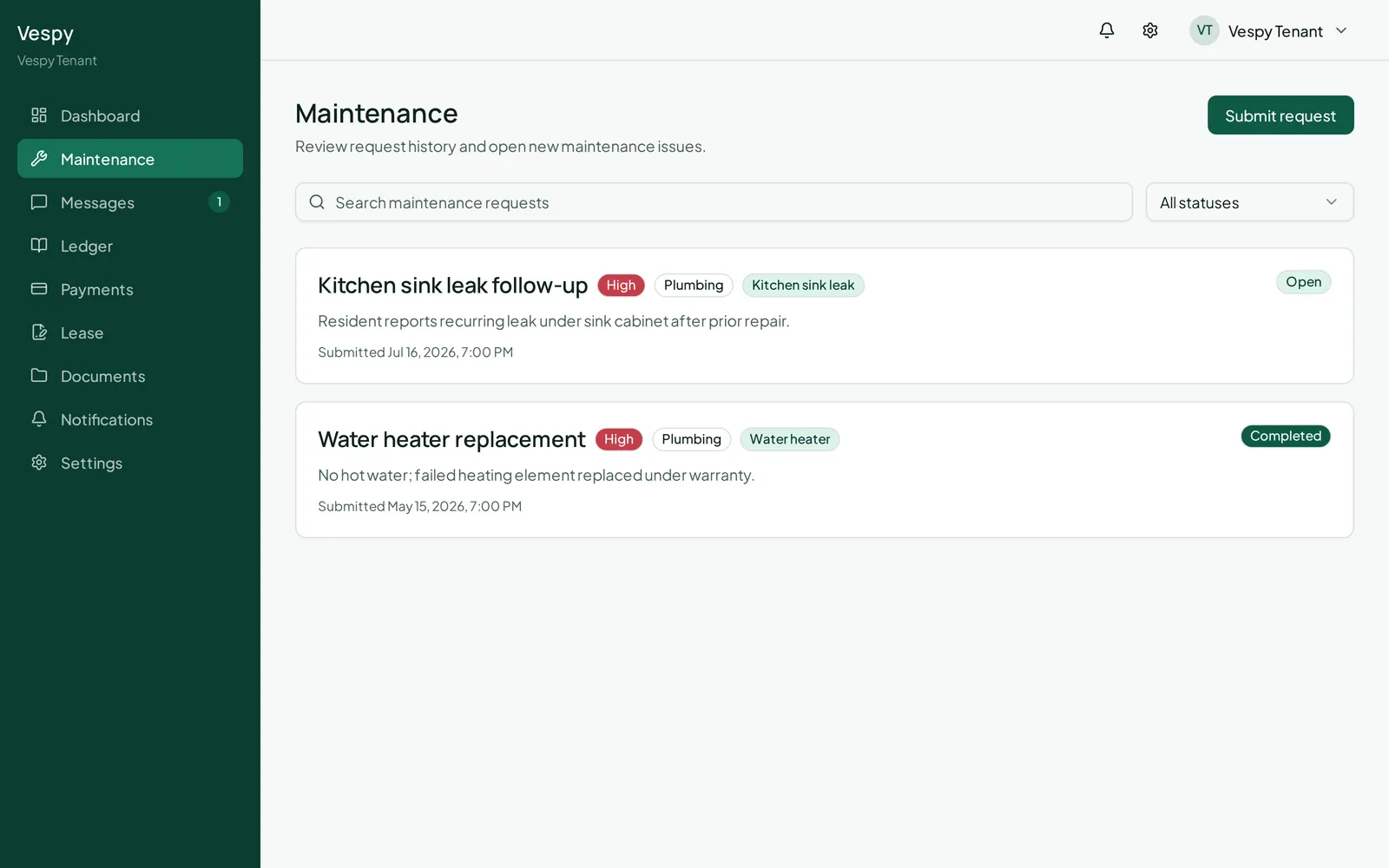
Section titled “2. Track it”Your maintenance list shows every request’s status — Open, In progress, Completed, or Cancelled — along with its priority and category. Search or filter to find an older one.
3. Follow up
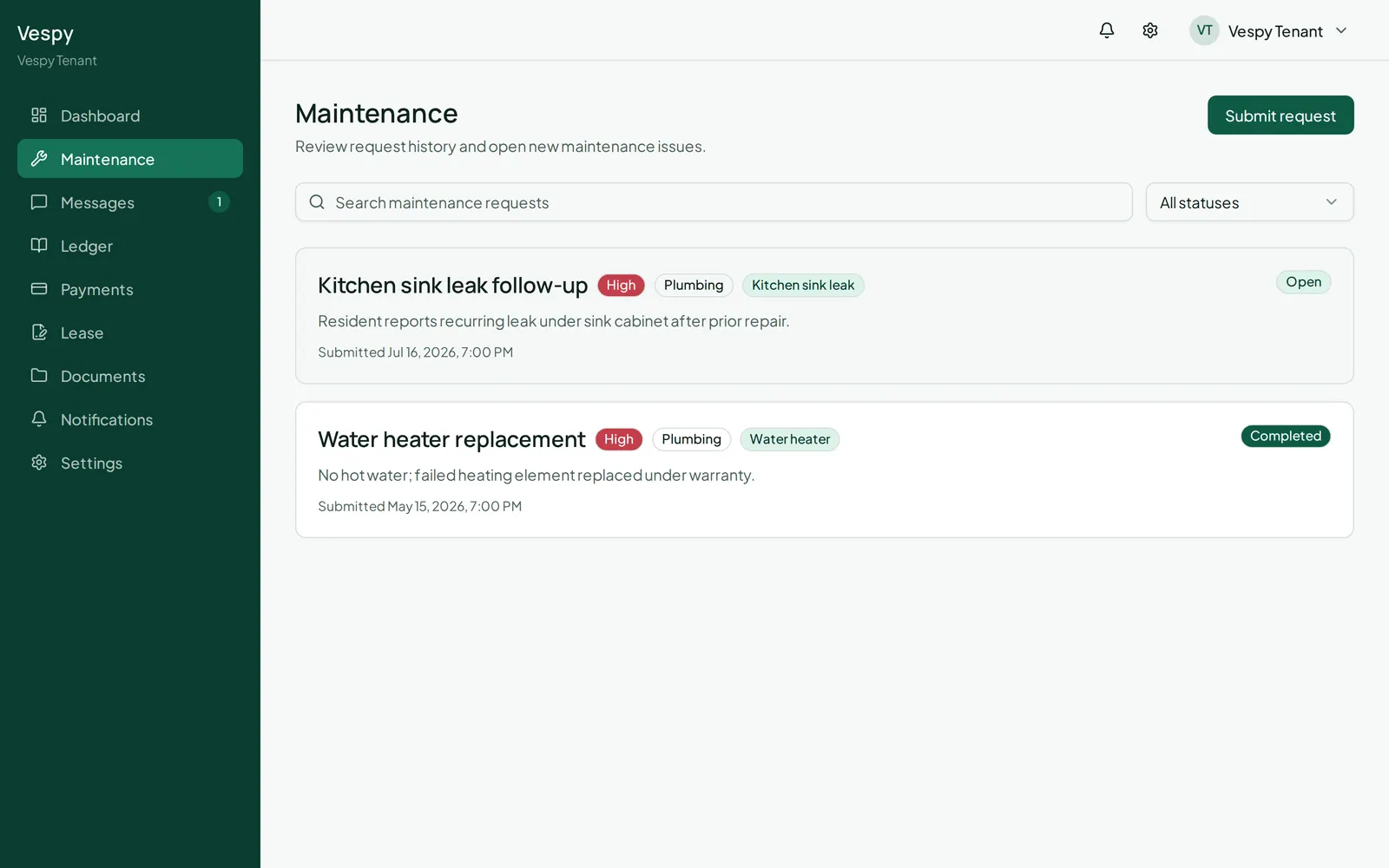
Section titled “3. Follow up”Open a request to see its full details, any attachments you added, and updates from property management as they work on it. Use Post comment to ask a question or add more information.
Afterwards
Section titled “Afterwards”- Messaging property management — for anything outside of a specific maintenance request.