Syncing with QuickBooks Online
Go to Integrations in the top navigation. Each integration card shows a health status — Healthy, Degraded, Expired, Revoked, or Not connected.
Connect QuickBooks Online
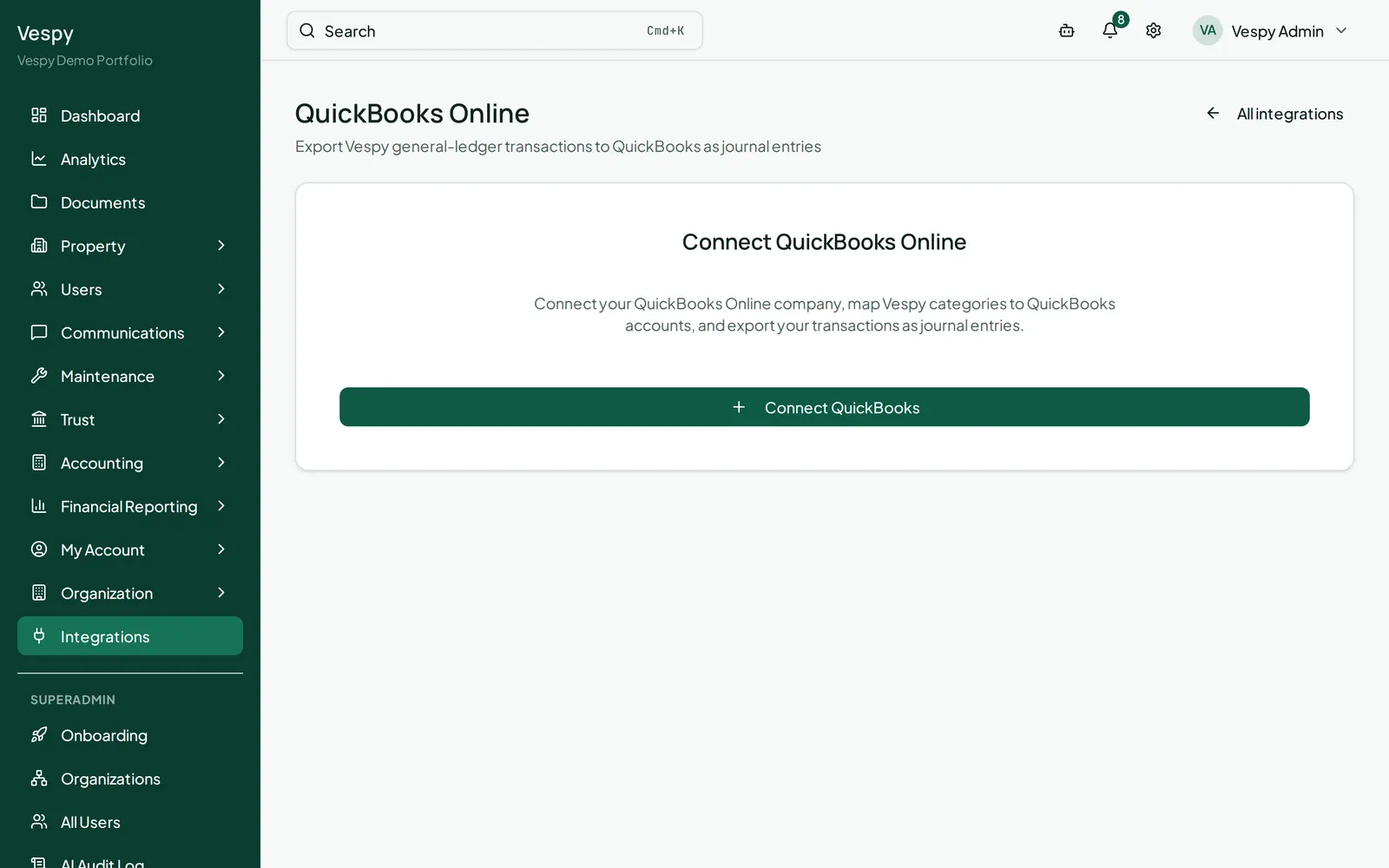
Section titled “Connect QuickBooks Online”From the Integrations catalog, click Connect QuickBooks. QuickBooks is available at the organization scope only, with one connection per organization.
Vespy redirects you through QuickBooks’ sign-in and authorization flow, then returns you to the Integrations page with a confirmation banner. Click Manage mappings & export to open the dedicated QuickBooks page.
Map your accounts
Section titled “Map your accounts”Before anything can export, your categories need to be matched to QuickBooks accounts. On the QuickBooks page, categories are grouped by type (Assets, Liabilities, Equity, Income, Cost of Services, Operating Expenses, Trust Accounts), each with a dropdown to pick its QuickBooks match.
- Auto-map required fills in only the mappings QuickBooks needs before it’ll accept anything — creating new QuickBooks accounts for you if needed.
- Auto-suggest fills in everything else with its best guess, for you to review.
- Save mappings commits your choices.
Export your books
Section titled “Export your books”Pick an export range (or leave it blank to export everything not yet synced), then click Export now. It runs in the background — the page checks in every few seconds and shows you a summary once it’s done: how many transactions synced, failed, or were skipped.
The export log lists every transaction that’s been attempted, with a status you can filter by (Synced, Failed, Skipped, Pending, Conflicts) and a plain-language error message for anything that didn’t go through — a missing mapping, an unbalanced entry, or a duplicate document number, for example.
Afterwards
Section titled “Afterwards”- Close the books each month — close a period before exporting its activity.
- Export to QuickBooks through the API — implement the same workflow with API requests.