Creating a commercial lease
A residential lease has one unit and one monthly rent. A commercial lease has:
- Premises: every space the lease covers, each with its own effective dates, so an expansion or contraction mid-term is just another dated row.
- Billing schedules: one per thing the tenant pays for, such as base rent, a CAM estimate, parking, or storage. Each schedule is a list of dated steps, and the step in effect on the due date decides what gets billed.
lease ─┬─ premises: Suite 200 · Suite 210 (from Feb 2026) · Parking P1 └─ schedules: Base rent $16,250 → $16,737.50 → $17,239.63 CAM estimate $4,875 Parking $1,800Before you start, you need a commercial or mixed-use property with its spaces (see Setting up a commercial property) and a tenant (see Adding a company tenant). If either is missing, the empty Commercial Leases page names the first one and links to it.
1. Enter the lease terms
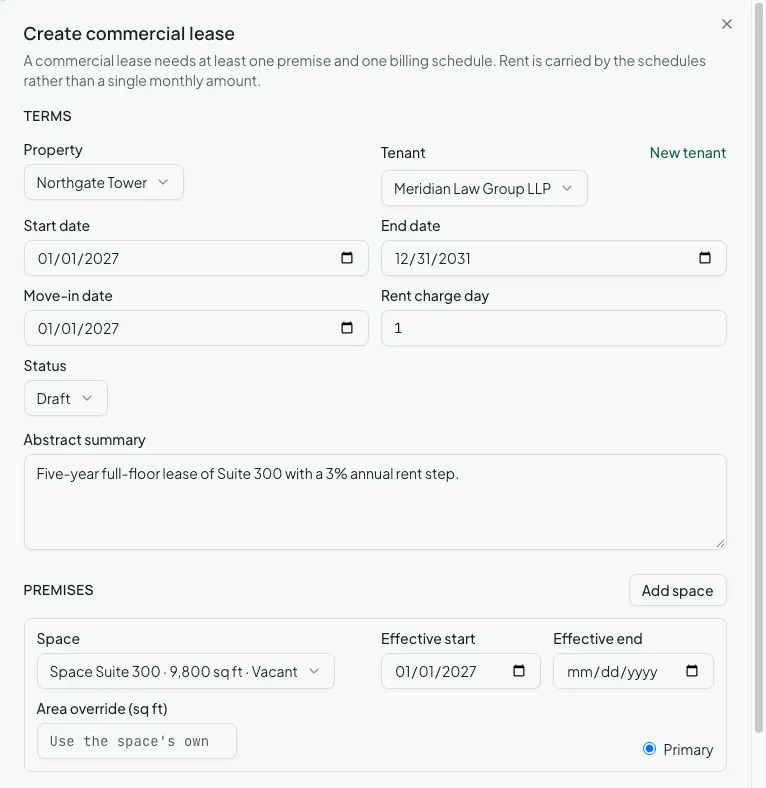
Section titled “1. Enter the lease terms”Go to Commercial > Commercial Leases and click Create commercial lease. (From a commercial property’s page, Create lease opens the same form with the property already chosen.) Fill in:
- Property: only commercial and mixed-use properties are listed.
- Tenant: or click New tenant to create a company tenant without leaving the form.
- Start date, End date, and Move-in date.
- Rent charge day: the day of the month the lease’s charges fall due.
- Status: Draft to keep working on it, or Active to start billing.
- Abstract summary: a one-line description of the deal. It becomes the summary of the lease’s first version.
2. Add the premises
Section titled “2. Add the premises”Under Premises, pick each Space the lease covers. The space list shows each space’s
area and whether it’s vacant, like Space Suite 300 · 9,800 sq ft · Vacant. For each space,
set:
- Effective start and Effective end: leave the end empty for the whole term. A space that joins later, such as an expansion suite, gets its own later start date.
- Area override (sq ft) (optional): the area this lease is charged on, when the lease measures the space differently from the suite record.
Mark one space Primary. It’s the space lists and reports show for the lease, and it defaults to the first one you add.
3. Set up billing schedules
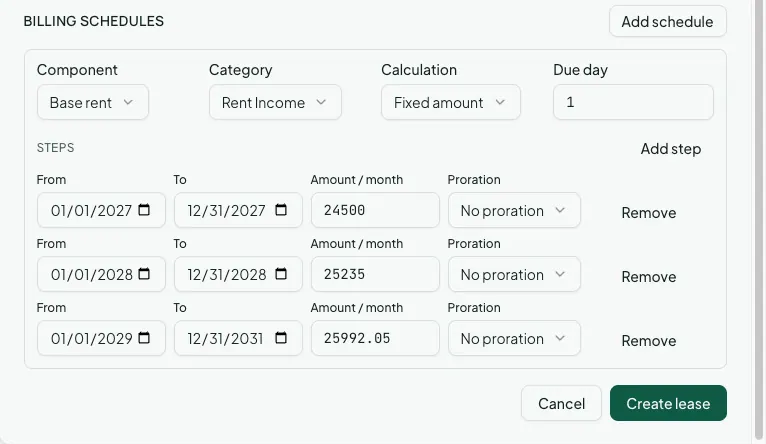
Section titled “3. Set up billing schedules”Click Add schedule for each charge the tenant pays. For each schedule choose:
- Component: Base rent, CAM estimate, Tax estimate, Insurance estimate, Parking, Storage, Utility, or Other. A CAM, tax, or insurance estimate schedule is what the year-end recovery reconciliation nets the tenant’s actual share against.
- Category: the income account the charges post to.
- Calculation: Fixed amount (a monthly dollar amount) or Per sq ft / year (an annual rate times the space’s rentable square footage, or its area override, divided by twelve).
- Due day: the day of the month this schedule bills.
Then add its Steps. Each step has a From date, a To date (empty means until the next step or the end of the lease), an amount or rate, and a Proration rule for partial months: No proration, Daily, or 30-day month.
A few common lease terms map onto steps like this:
| Lease term | Steps |
|---|---|
| Fixed annual bumps | One step per lease year, each at the new amount |
| $30.00/sf/yr | One Per sq ft / year step at 30.00 |
| Mid-month start | First step with Daily or 30-day month proration |
Steps can’t overlap. If increases follow a formula rather than a fixed table, set up the first step here and let an escalation rule write the later ones.
Click Create lease when you’re done.
4. Review and activate
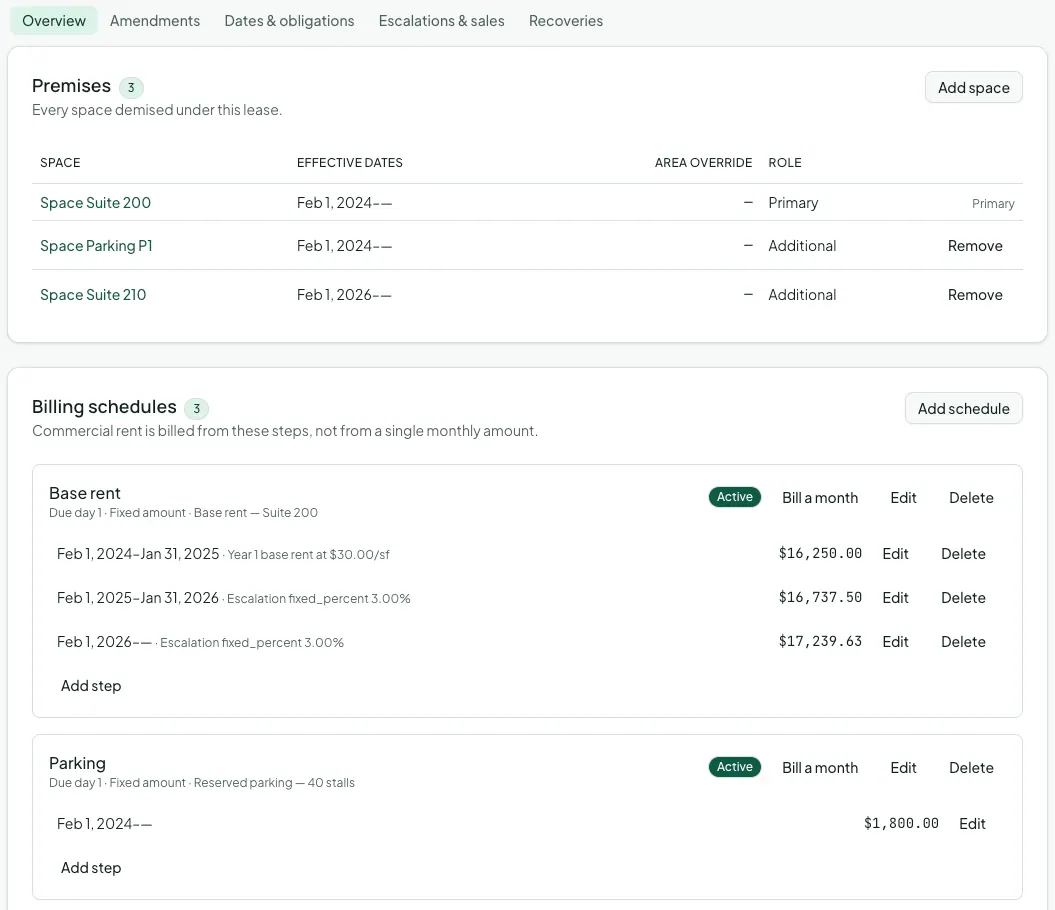
Section titled “4. Review and activate”The lease’s page opens on the Overview tab, which has the full lease record:
- Premises: every space under the lease. Add space handles an expansion.
- Billing schedules: each schedule with its steps, where you can add, edit, or delete steps.
- Security deposits, Guarantors, and Lease versions.
If you saved the lease as a draft, click Change status and set it to Active. Activating marks every current space occupied and starts billing. Each morning Vespy posts the charges that fall due that day, one per schedule, at the amount of the step in effect. A month is only ever billed once.
Entering a lease that started before today? Click Bill a month on a schedule to post an installment for a month that already fell due.
Afterwards
Section titled “Afterwards”- Amendments, options, and critical dates — change the lease mid-term and track its deadlines.
- Rent escalations and index values — automatic annual or CPI increases.
- Commercial invoices and credit memos — bill the tenant one document a month.