Paying rent, saving a payment method, and setting up autopay
Go to Payments in your portal to pay rent, manage saved payment methods, and turn on autopay.
1. Pay what you owe
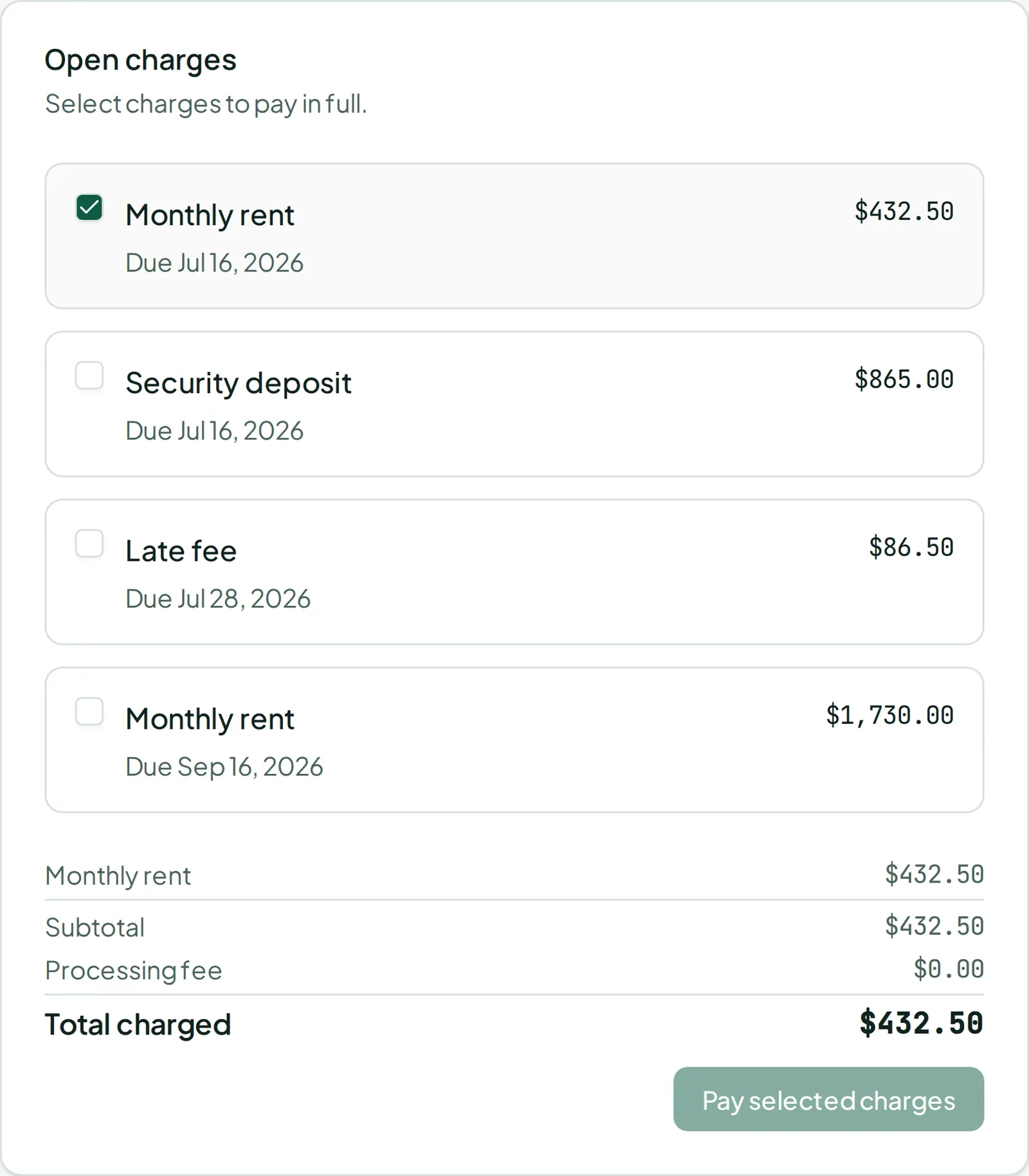
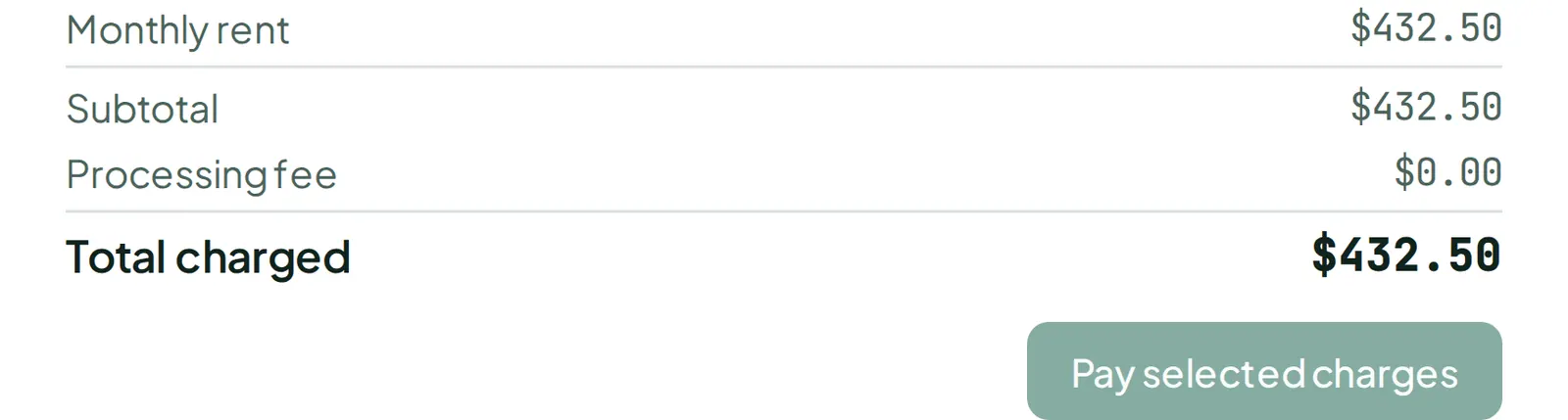
Section titled “1. Pay what you owe”Check off the open charges you want to pay — each shows its name, due date, and balance. As you select charges, you’ll see a running subtotal, a processing fee (which varies depending on whether you’re paying by card or bank account), and a grand total.
2. Add a payment method
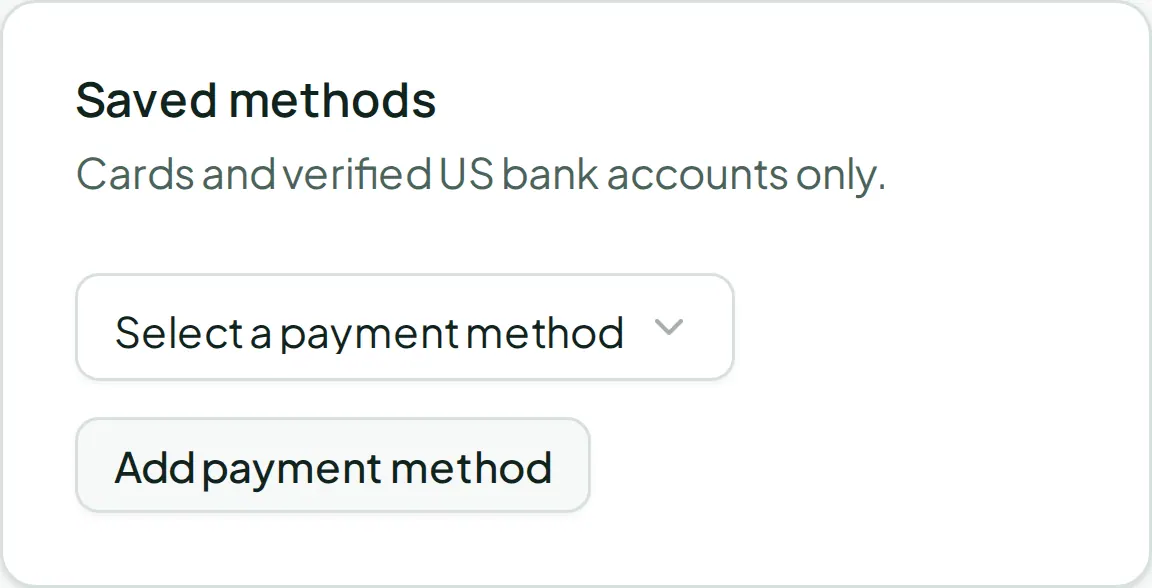
Section titled “2. Add a payment method”Click Add payment method and enter your card or bank account details in the secure form that opens. Cards and verified US bank accounts are both supported. Once saved, it shows up as a card with the last 4 digits and its status, along with what fee applies if you pay with it.
3. Pay
Section titled “3. Pay”Pick a saved method and click Pay selected charges to complete the payment.
4. Turn on autopay
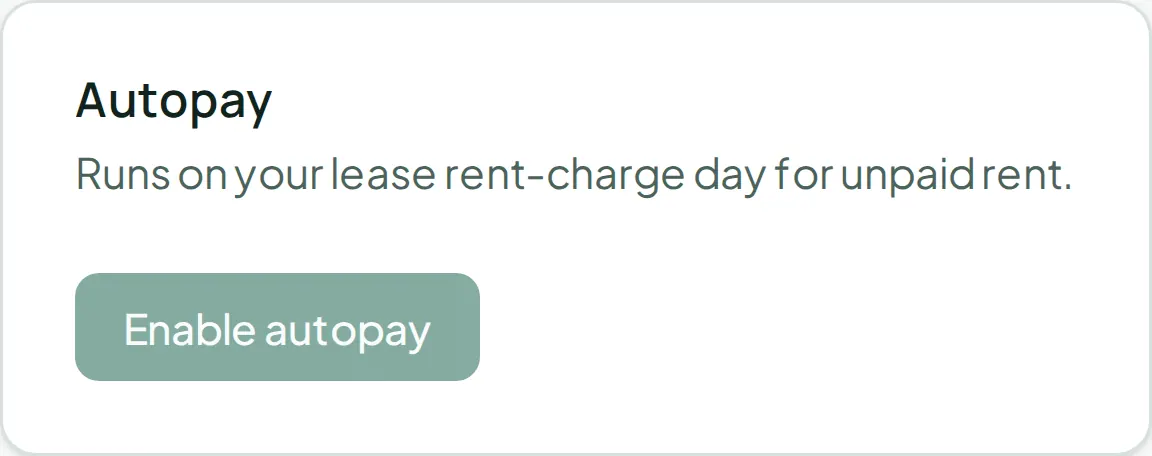
Section titled “4. Turn on autopay”The Autopay section lets you enable automatic payment of unpaid rent on your lease’s rent-charge day each month, using whichever saved payment method you choose. Click Enable autopay (you’ll need a saved payment method first) or Disable autopay if you want to turn it off.
Checking your balance and history
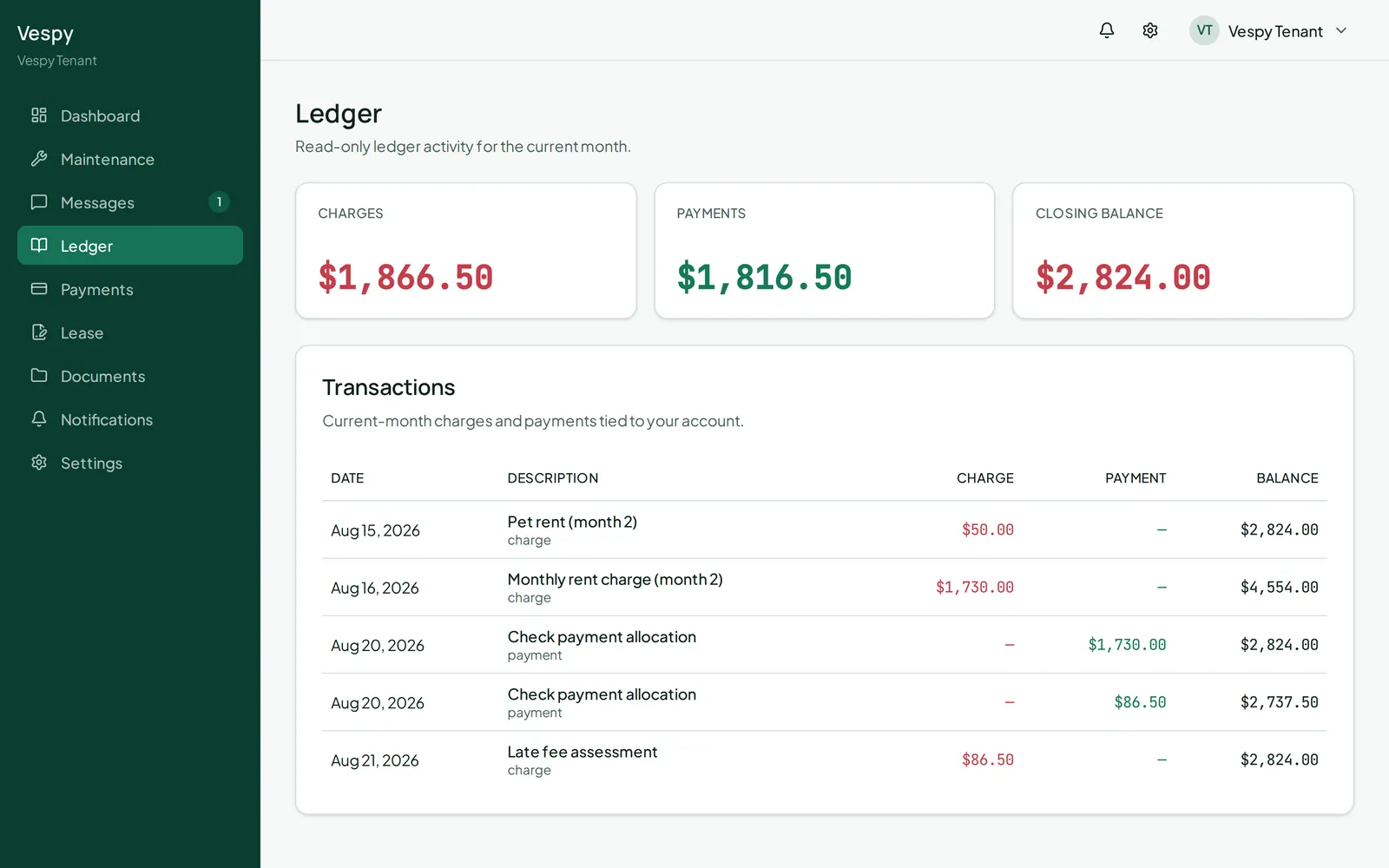
Section titled “Checking your balance and history”Ledger gives you a read-only view of this month’s activity — charges, payments, and your running balance — if you just want to check where things stand without making a payment.